Category: Wallpaper

  • Dog Wallpaper: 52 Cute Dog Backgrounds for Your Screen

    Dog Wallpaper: 52 Cute Dog Backgrounds for Your Screen

    Dog wallpaper ideas for a happier screen

    A dog wallpaper can give your phone or desktop a cheerful focal point. Choose an expressive portrait, a playful garden scene, or a dog relaxing in the sunshine. This collection brings together 52 dog photographs in 13 breed tabs, so you can browse different looks without scrolling through every image at once. From golden retrievers to spotted Dalmatians, there is room to choose a background that matches your favourite colours, screen layout, and personal style.

    Browse the dog wallpaper gallery

    Open a breed tab to see four photographs, then compare the dog’s position, the background, and the available space around the subject. Each image includes descriptive alternative text and a source credit. Portrait compositions can be useful for phones, while wider photographs usually need less cropping on a desktop. The gallery also includes different proportions, giving you options beyond a single fixed screen size. Check the source information to explore each original image.

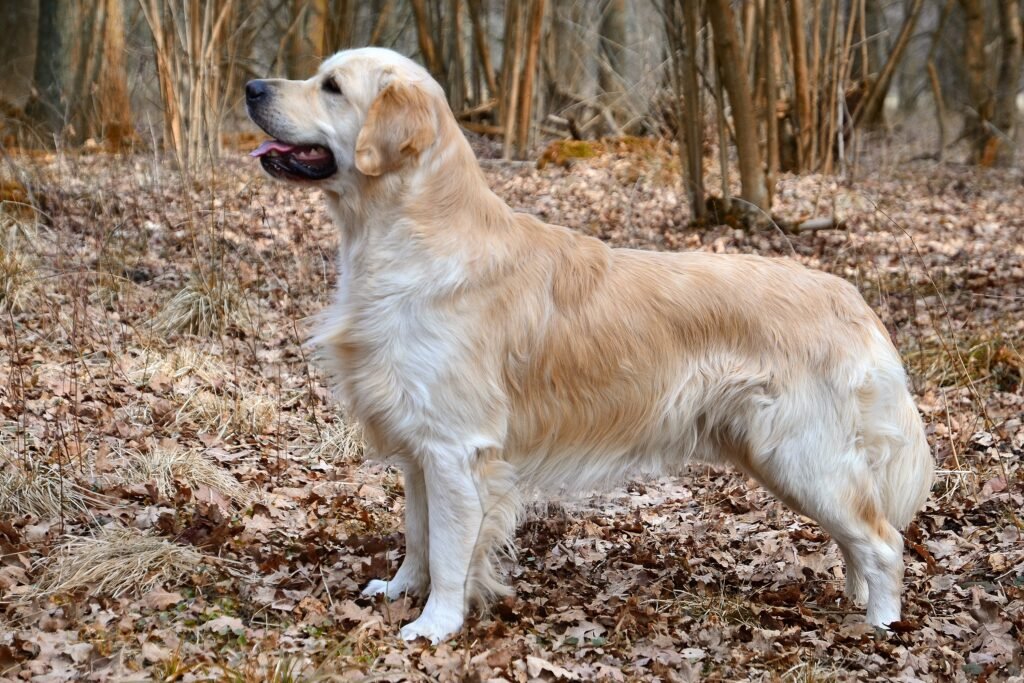
    Golden retriever wallpaper

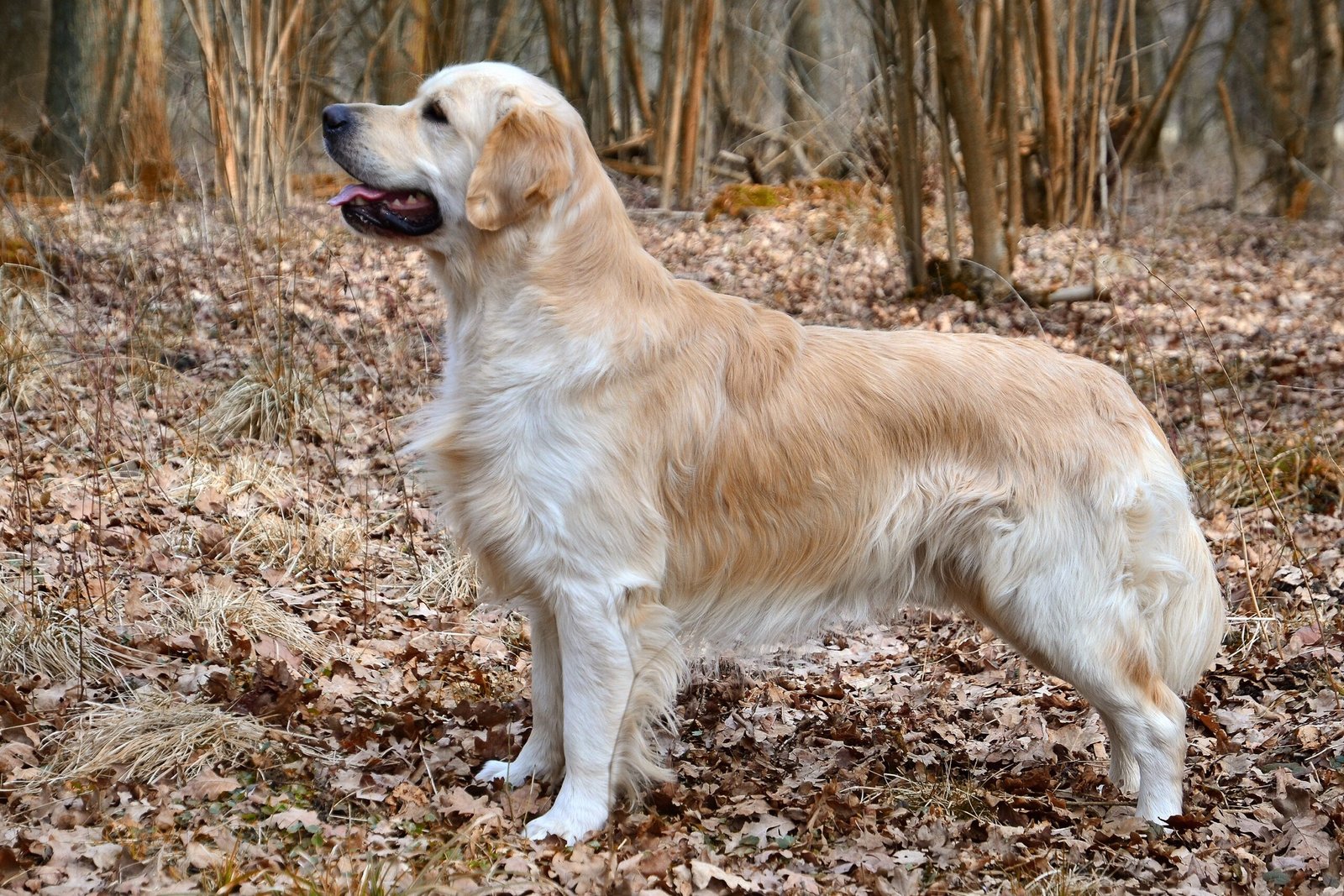
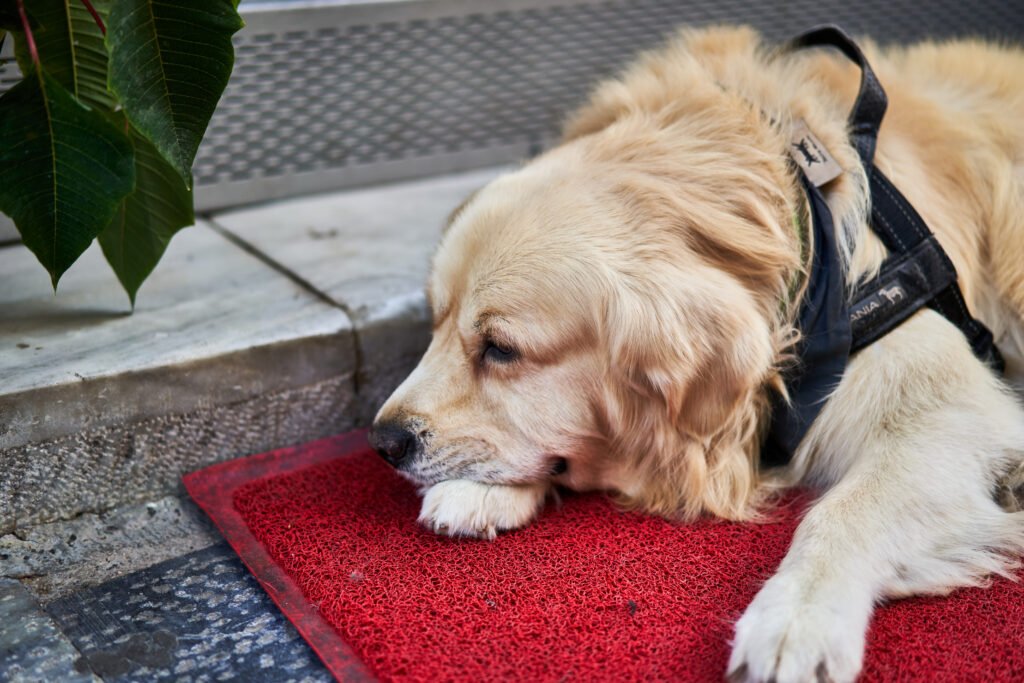
    Golden retriever photographs bring warm coat colours and expressive faces to a screen. A close portrait can work beautifully on a lock screen, especially when the eyes sit below the clock. Wider outdoor photographs offer more room for desktop icons. Compare the lighter fur with your text colour before choosing a crop, because bright highlights can reduce the contrast of white labels.

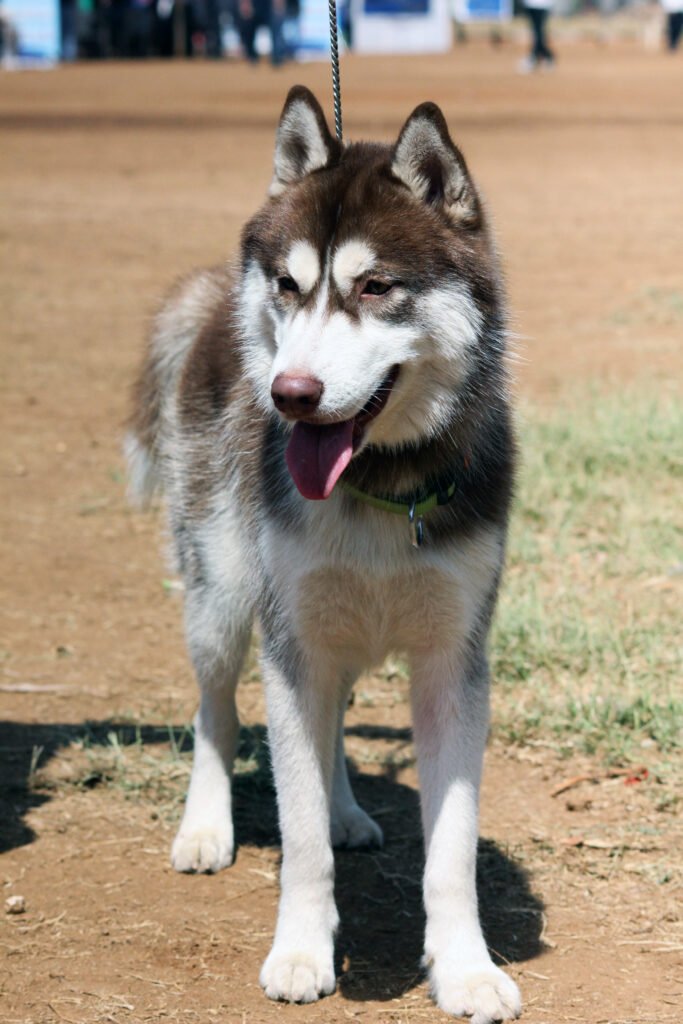
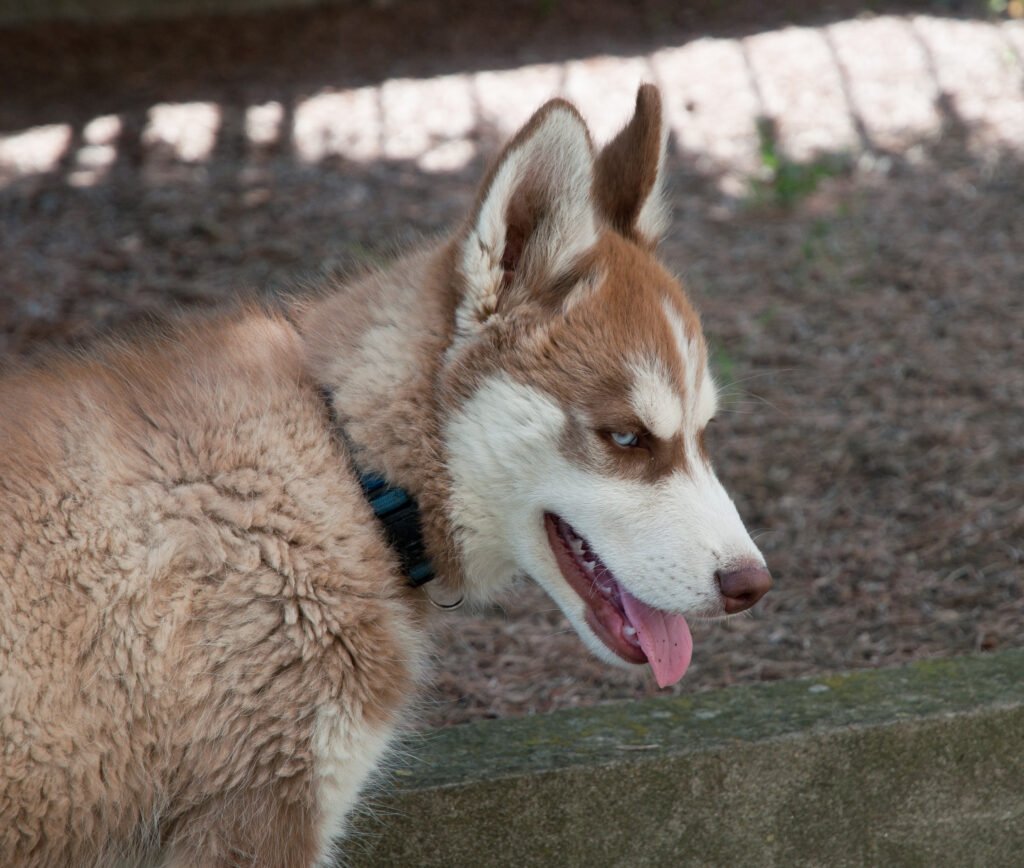
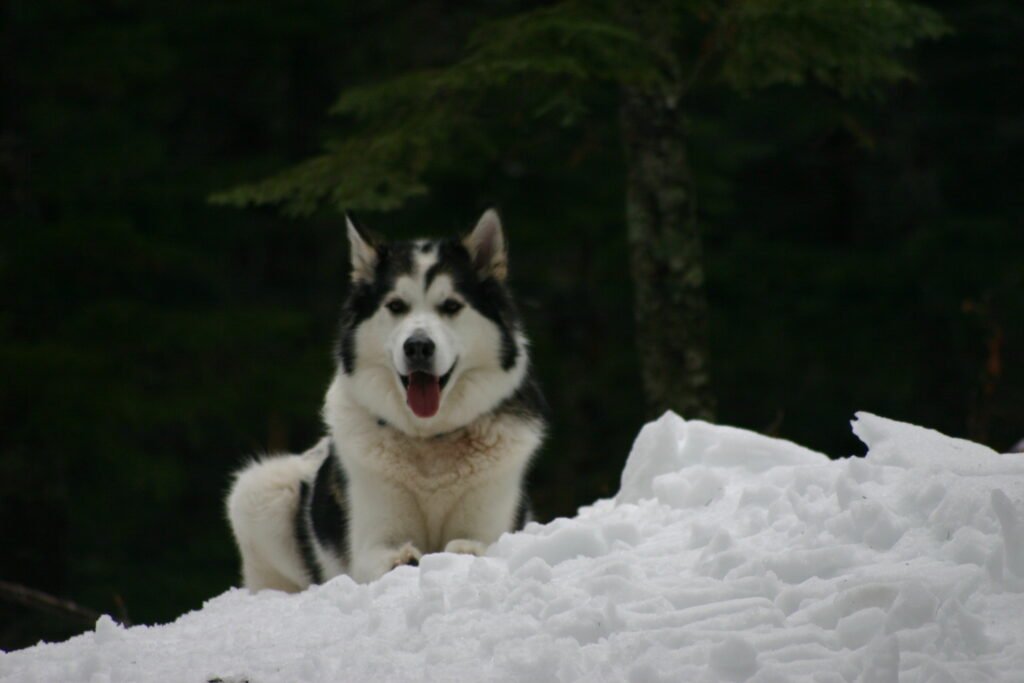
    Husky wallpaper

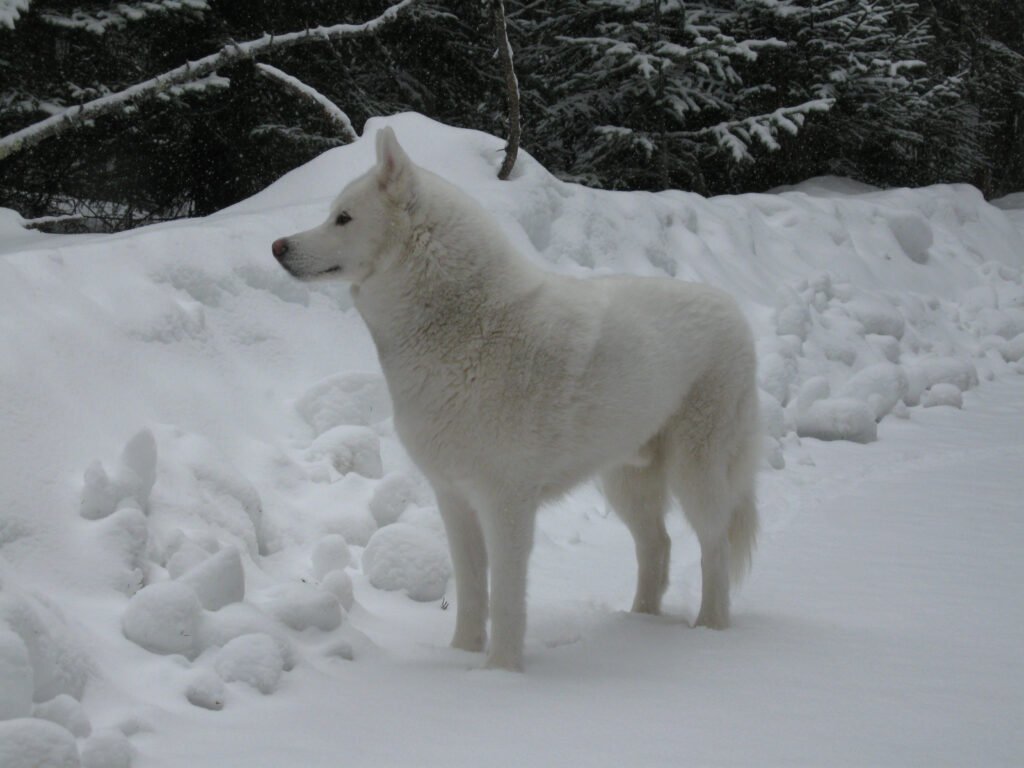
    Husky images often feature strong facial markings that remain noticeable even in a small preview. A portrait can emphasise the face, while a wider composition gives the surrounding landscape more space. Keep the ears inside the crop when possible. Cutting closely around the head may make an otherwise striking photograph feel cramped once your phone adds its clock and notification area.

    Beagle wallpaper

    Beagle photographs offer a familiar combination of soft ears, distinctive markings, and curious expressions. A relaxed portrait suits a simple home screen, while an outdoor scene brings a more playful mood. Leave enough room around the muzzle and ears when adjusting the wallpaper. A slightly wider crop can preserve the character of the photograph without making the dog too small.

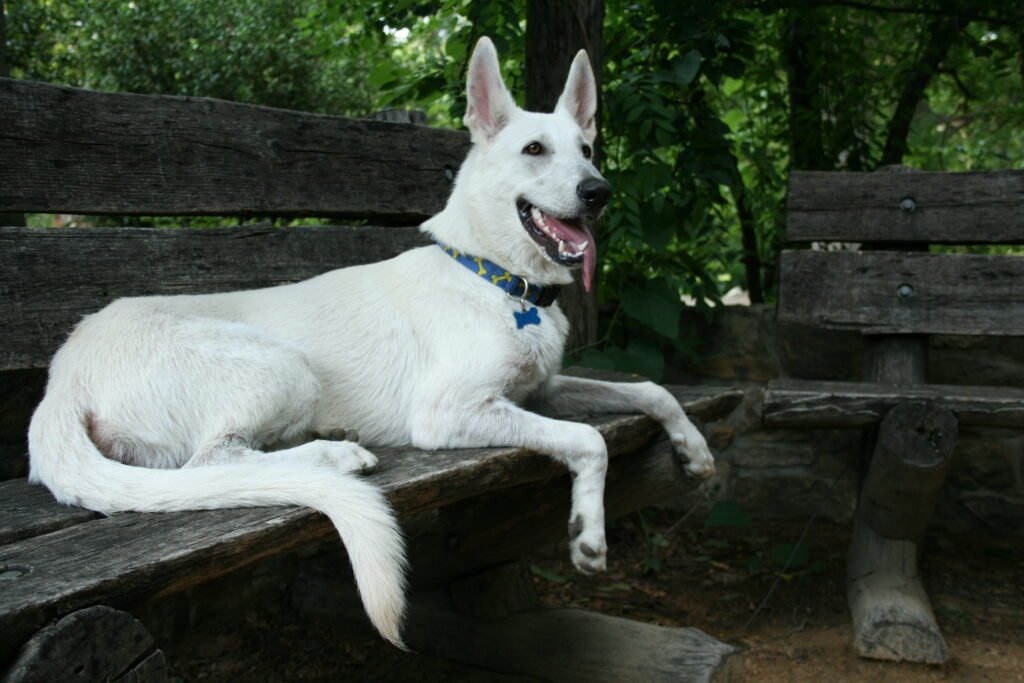
    German shepherd wallpaper

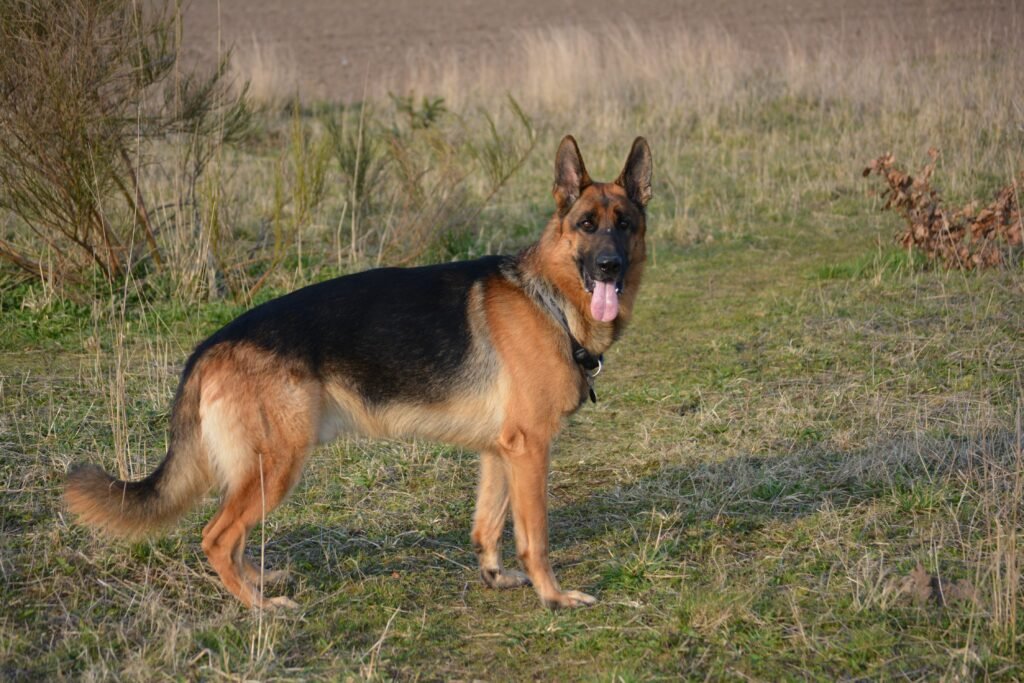
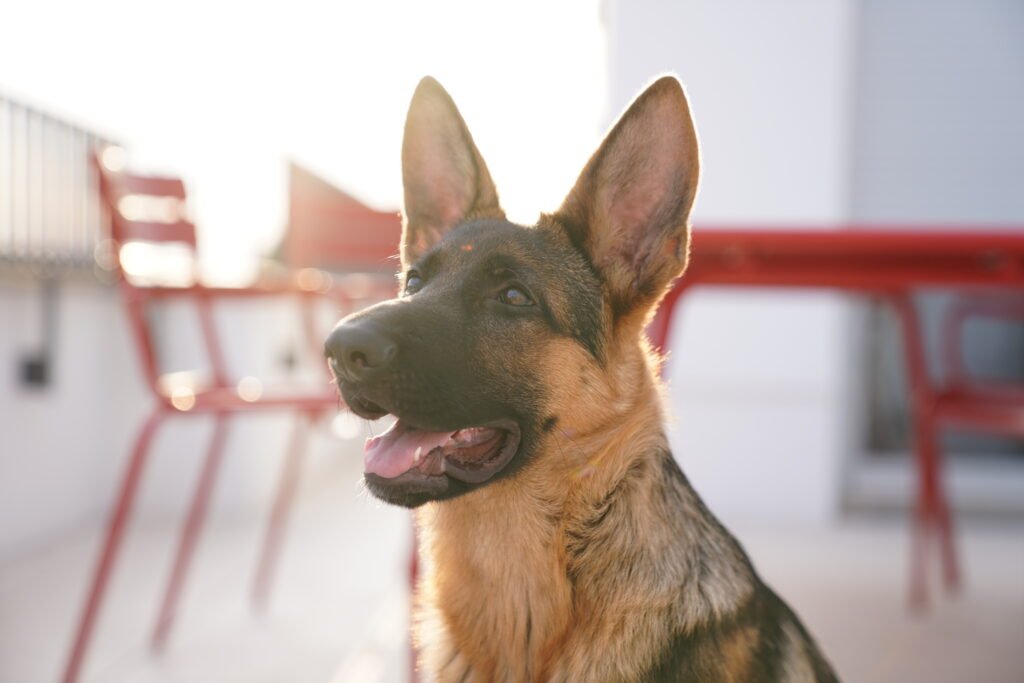
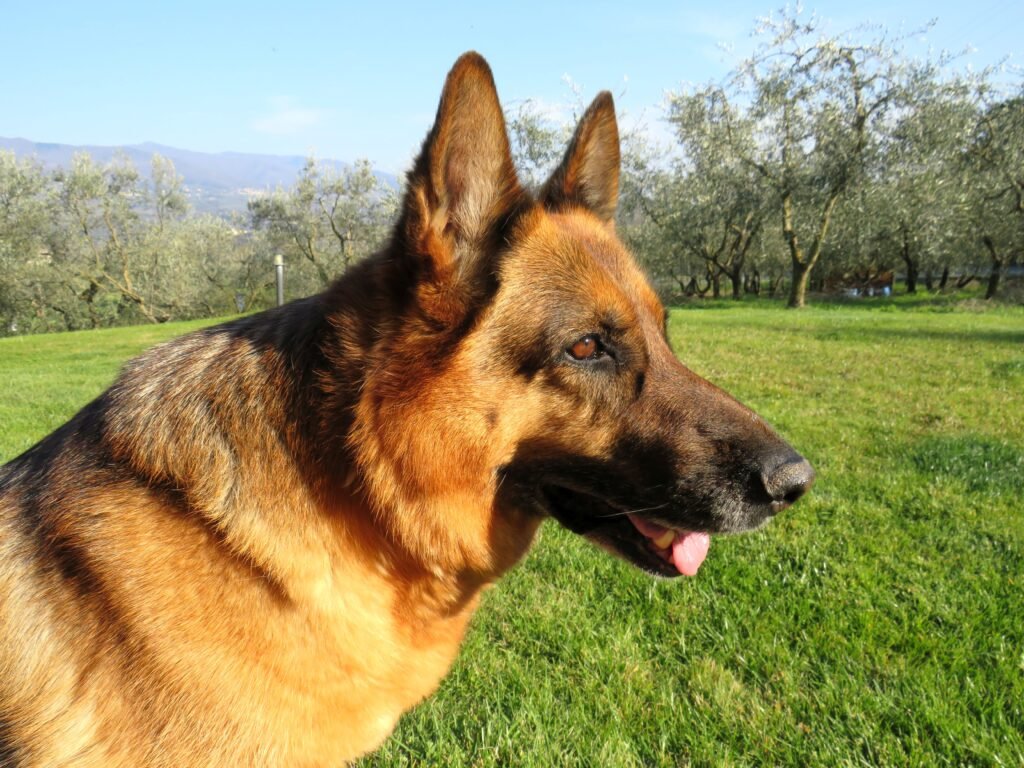
    German shepherd backgrounds can feel especially expressive when the face and upright ears are clearly visible. Darker coat areas may help pale screen text stand out, although the background matters just as much. Choose a composition with a quieter corner for shortcuts. On a narrow phone display, check that the crop keeps both the head and the surrounding space balanced.

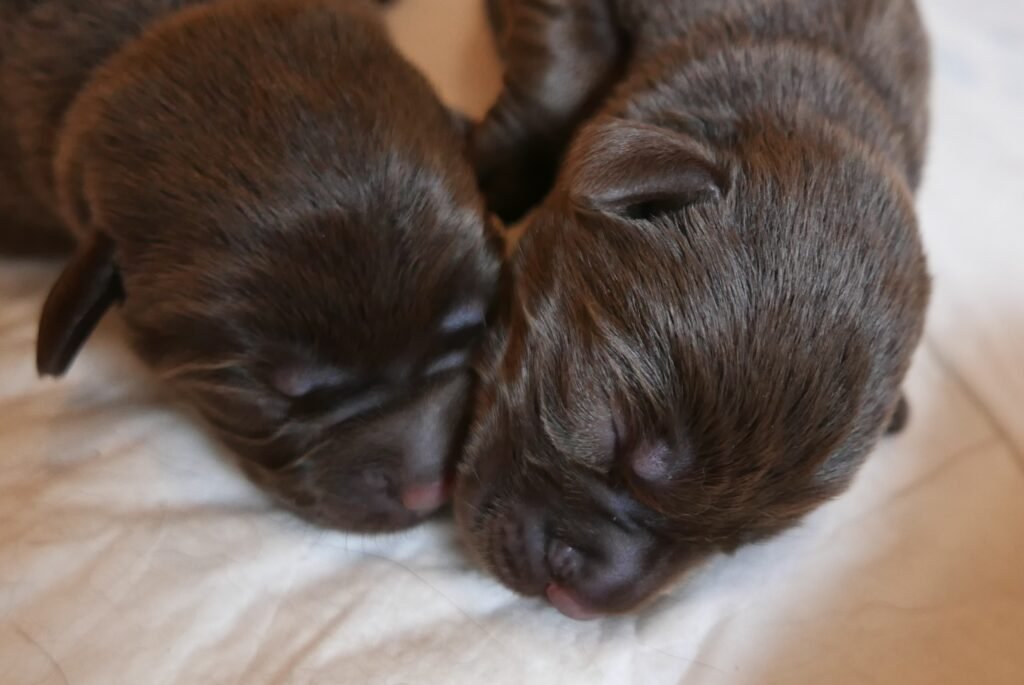
    Labrador wallpaper

    Labrador photographs provide different coat colours and settings to explore. A simple portrait may suit a clean screen, while a dog photographed outdoors adds natural texture. Think about the overall brightness before choosing an image. Dark fur can blend into a dark background, and pale fur can compete with white labels, so preview the complete screen before applying your choice.

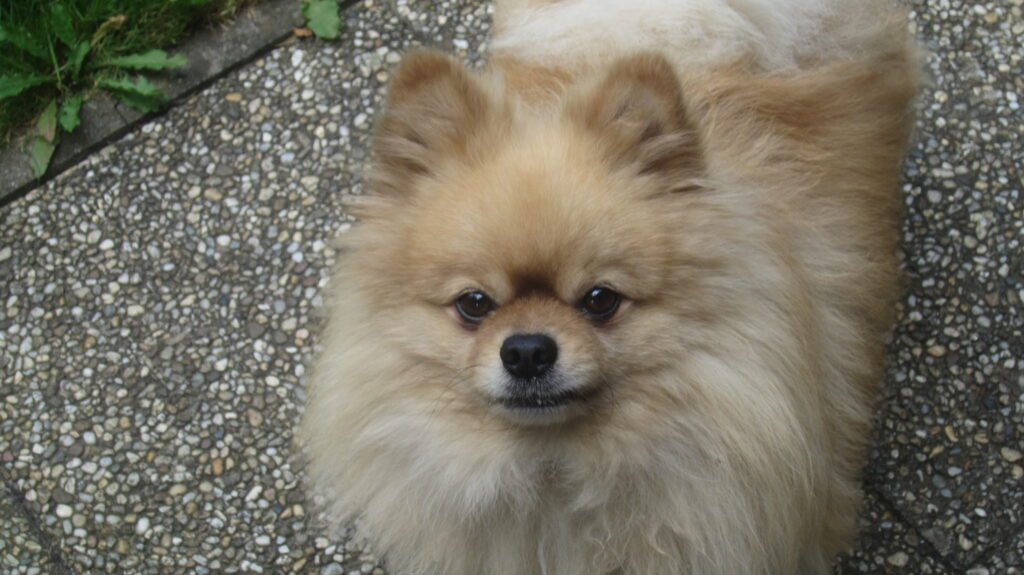
    Pomeranian wallpaper

    Pomeranian images draw attention through their fluffy coats and compact silhouettes. A close photograph can make the face the main feature of a phone screen. On a desktop, a wider view gives the coat texture room to breathe. Avoid enlarging the preview excessively: fine fur details look better when you begin with a sufficiently large photograph and use a modest crop.

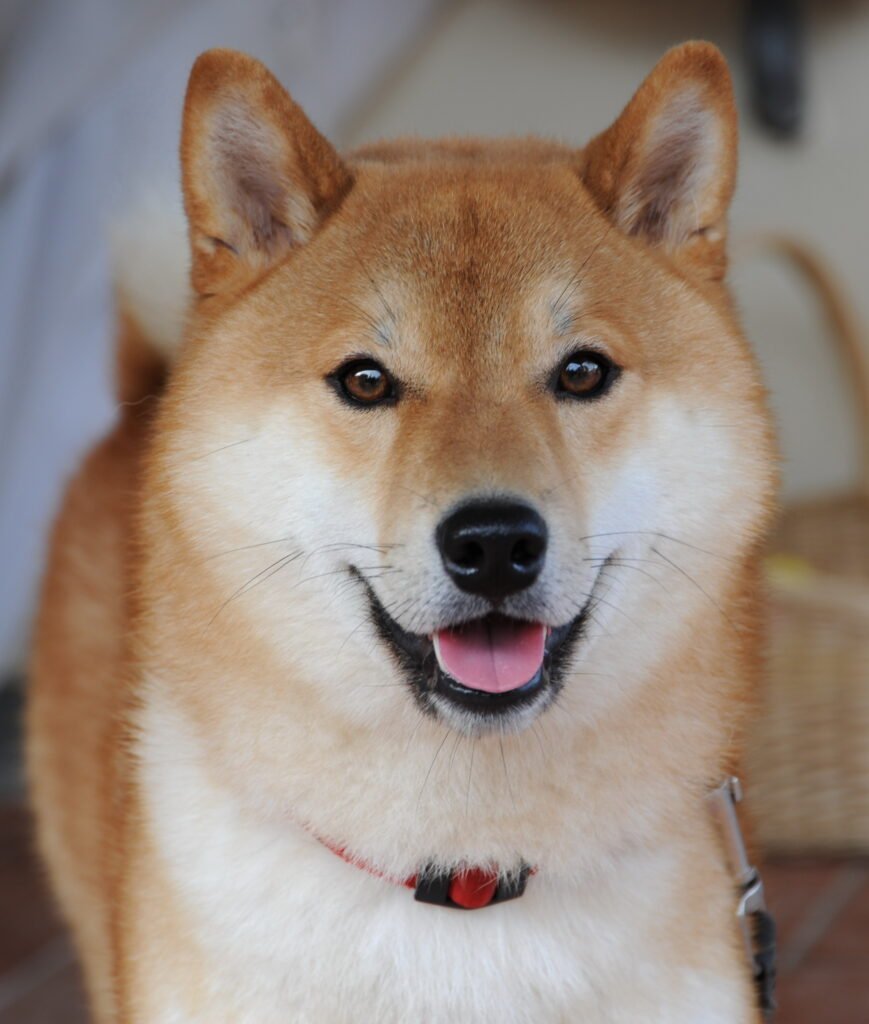
    Shiba Inu wallpaper

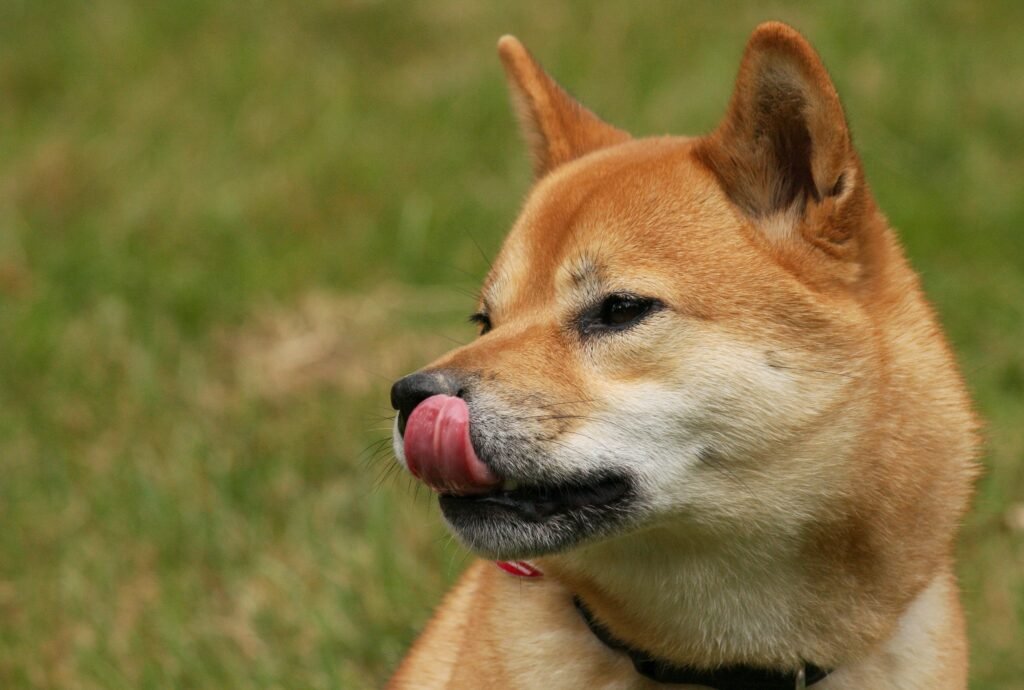
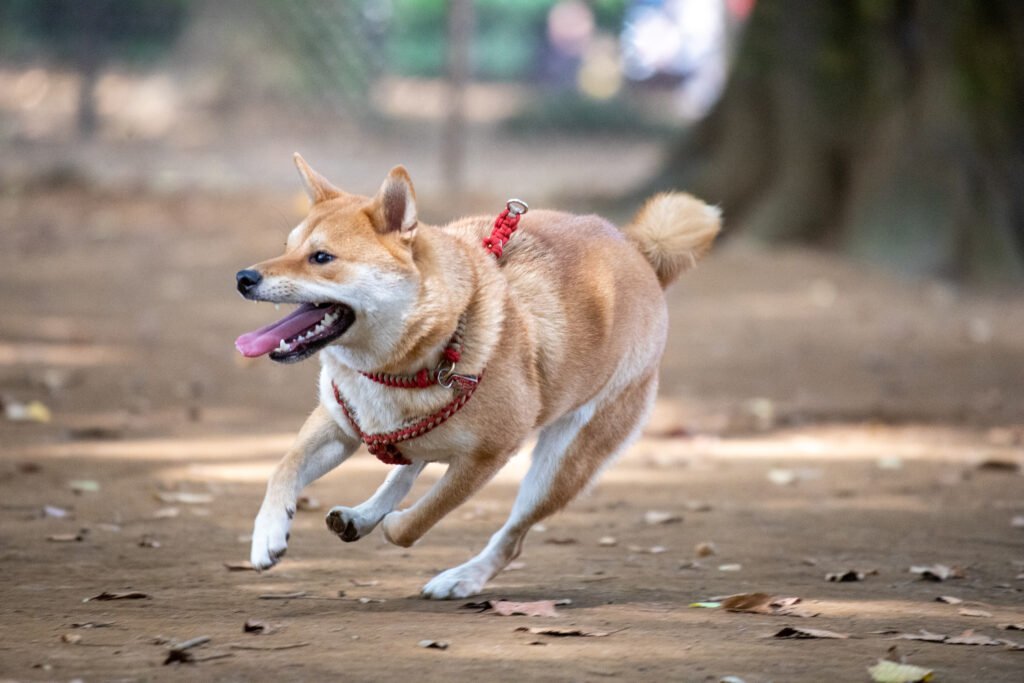
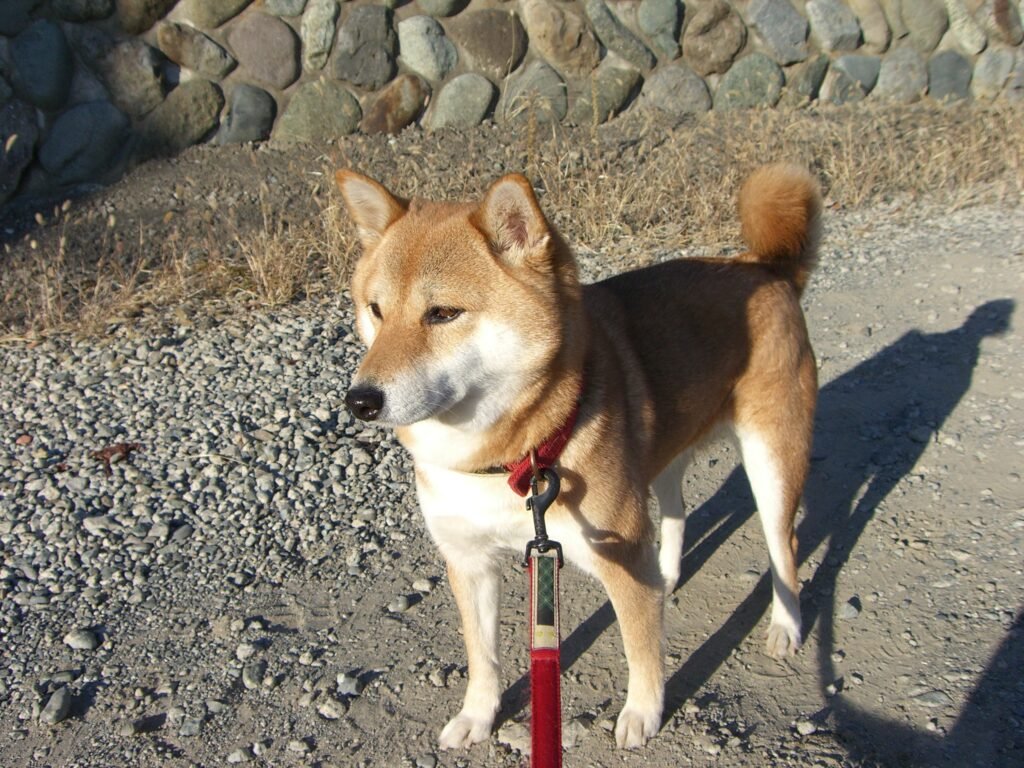
    Shiba Inu photographs often create a clear focal point through the shape of the ears, face, and curled tail. Some compositions suit a minimal background, while others include more of the dog’s surroundings. Decide which detail you want to keep before cropping. A full-body photograph can lose its balance if the tail or feet disappear at the screen’s edges.

    Dachshund wallpaper

    Dachshund photographs can work particularly well across a wider screen when the full body is visible. A close portrait gives a different effect and may fit a phone more naturally. Let the composition guide your choice instead of forcing every photograph into the same crop. Keep enough space around the dog to preserve its proportions and the feeling of the scene.

    Poodle wallpaper

    Poodle images offer curly coat textures and a variety of photographic styles. A detailed portrait can feel elegant, while a wider outdoor scene creates a more relaxed background. Notice where the brightest curls fall before placing screen text over them. If the photograph feels busy behind your apps, use it on the lock screen and choose a quieter home-screen background.

    Border collie wallpaper

    Border collie photographs can provide strong contrast between coat markings and the surrounding grass or landscape. Look for a clear face and a composition that leaves useful space around the subject. A wider image may suit a desktop with shortcuts along one edge. For a phone, choose a crop that keeps the eyes visible without cutting the ears too tightly.

    Corgi wallpaper

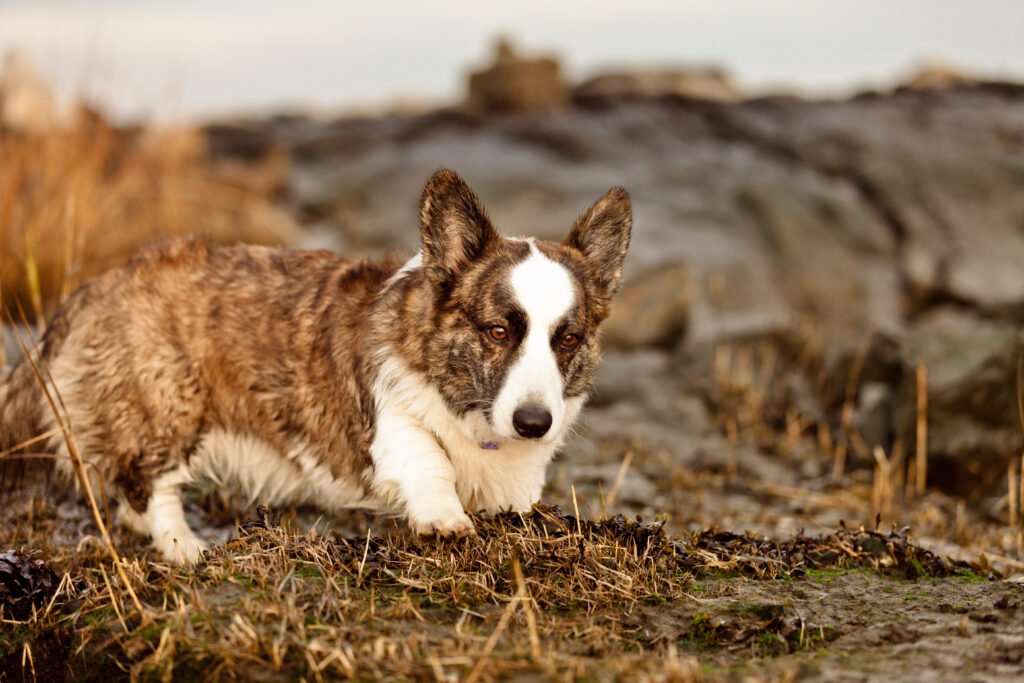
    Corgi backgrounds can highlight expressive ears, a low silhouette, or a full outdoor scene. A face-focused portrait is easy to recognise on a phone, while a wider photograph can preserve more of the dog’s stance. Consider the height of your widgets before positioning the image. Moving the crop slightly may keep the face clear while leaving the screen comfortably readable.
    Chihuahua wallpaper

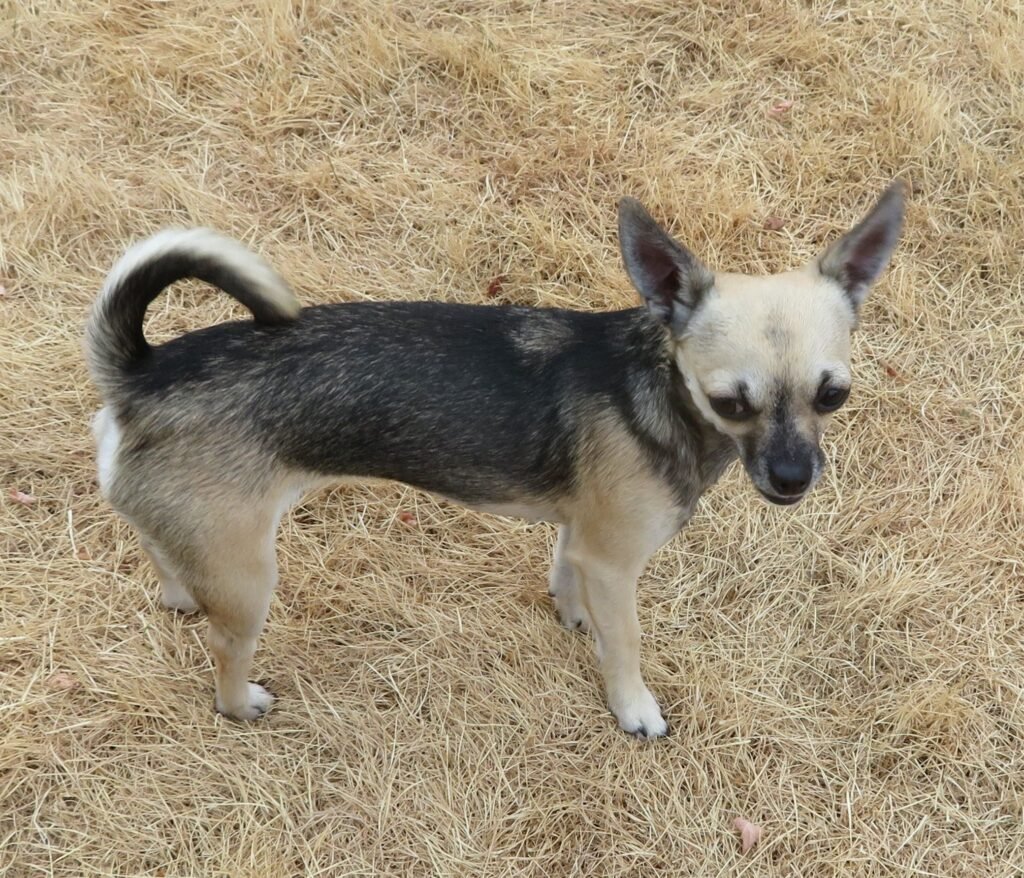
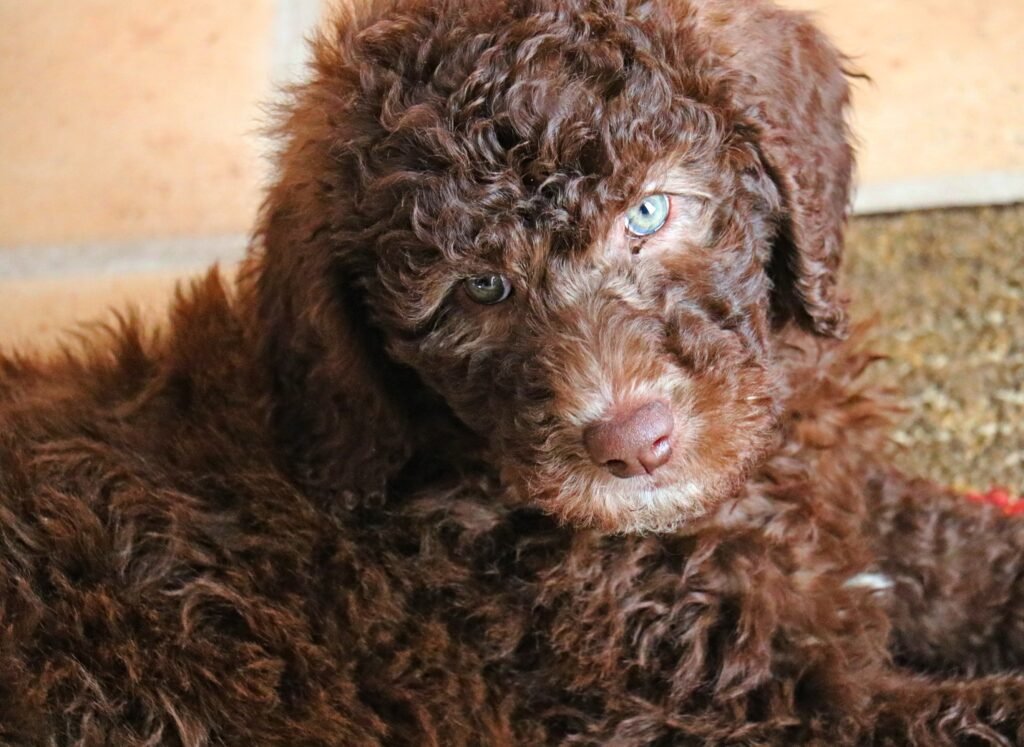
    Chihuahua photographs offer small-scale subjects with plenty of personality in their expressions and posture. A close portrait can create a strong focal point without filling the screen with background detail. Wider photographs can also work if the dog remains noticeable after cropping. Test the wallpaper at its actual display size rather than judging only from a large gallery preview.

    Dalmatian wallpaper

    Dalmatian images bring a distinctive spotted pattern to the collection. Those markings can be visually lively, so a simpler background often helps the screen feel balanced. A portrait focuses attention on the face, while a wider image lets you enjoy the coat pattern across the body. Keep important labels away from areas where small dark spots make the text difficult to read.

    Choose the right dog wallpaper for your phone

    Start by matching the photograph’s composition to your screen. A tall image often needs less cropping, but the placement of the dog matters more than orientation alone. Leave space for the clock near the top and check where notifications appear. If your phone automatically zooms the picture, adjust the position carefully. Preview both the lock screen and home screen, since an image that looks clear without icons can feel crowded once your usual apps are visible.

    Choose a comfortable desktop background

    Landscape photographs usually fit a laptop or desktop more naturally than narrow portraits. Look for a quieter area behind your shortcuts and keep the dog’s face away from menus or frequently used widgets. A proportional fill setting may crop the edges, while a fit setting may leave space around the picture. Avoid stretching the photograph, which can distort the dog’s proportions. For an ultrawide monitor, choose a broad scene and check the crop before applying it.

    Understand image size and clarity

    Image dimensions tell you how many pixels a file contains. A larger photograph generally gives you more room to crop, but a high pixel count does not guarantee that every detail is perfectly sharp. The gallery previews are designed for browsing and may be smaller than the source files. Check the linked source page for the original dimensions and available versions. Avoid relying on screenshots when you want the clearest wallpaper, because screenshots preserve only the pixels displayed on your screen.

    Frequently asked questions

    Which dog wallpaper is best for a phone?

    Choose a photograph that keeps the dog’s face visible and leaves space for the clock and notifications. Portrait images are often convenient, but a landscape photograph can also work when the subject sits in a useful position. Preview the crop on your own device.

    Can I use these images on a desktop?

    Yes, many of the wider compositions suit a desktop background. Check the source dimensions and choose a proportional fit or fill setting. Your monitor’s shape determines how much of the photograph remains visible, especially if you use an ultrawide display.

    Are all the dog wallpapers 4K?

    No. The photographs have different original dimensions, and the gallery does not label every image as 4K. Use each source link to check the original file information and select a version appropriate for your screen. Avoid enlarging a small preview unnecessarily.

    How can I save a dog photograph?

    Open the source link below the photograph to find the original file and its available sizes. Save the version you need through your browser, then select it in your device’s background settings. Browser controls and wallpaper-setting labels vary between devices.

    Can I reuse a photograph elsewhere?

    Check the licence linked beneath that specific image. Some photographs require attribution, and some have additional sharing conditions. Keep the creator credit and source information when required. The collection’s images do not all carry the same licence, so review each one separately.

    Where can I find more wallpaper ideas?

    Explore HayaGlam’s Wallpaper category for other collections, including floral backgrounds. Save different dog images to refresh your screen. Keep favourite files organised.

  • Floral Wallpaper Flowers: 40 HD Phone and Desktop Backgrounds

    Floral Wallpaper Flowers: 40 HD Phone and Desktop Backgrounds

    Floral wallpaper flowers for phone and desktop

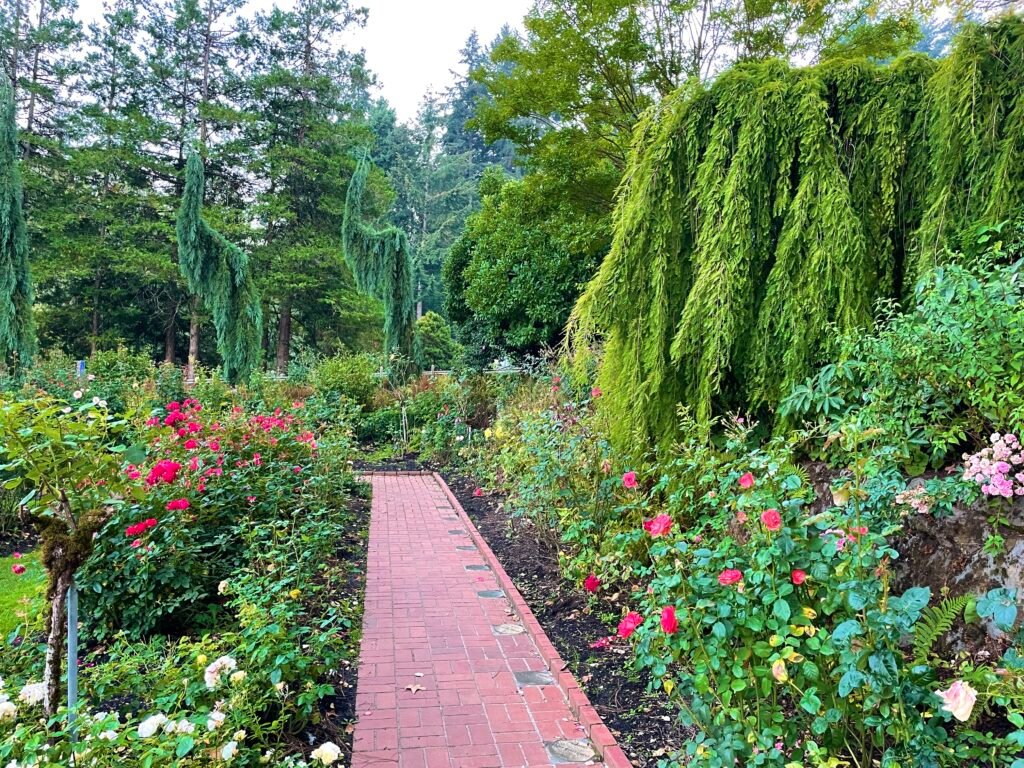
    Floral wallpaper flowers bring colour, texture, and a little garden atmosphere to the screens you use every day. A rose close-up can make a lock screen feel romantic, while a wider photograph of sunflowers adds warmth to a desktop. This collection gives you ten flower categories to explore, with four photographs in every tab. Each category includes two portrait images for phones and two landscape images for desktops, making forty wallpapers altogether. Browse the previews, compare their compositions, and download the original files when you find a favourite.

    Explore ten flower wallpaper categories

    The tabs organise the collection by flower rather than mixing every photograph into one long gallery. You can move between roses, tulips, sunflowers, daisies, lavender, cherry blossoms, lotus flowers, orchids, peonies, and hibiscus. Within each tab, the phone choices appear first, followed by the desktop choices. Captions show the image dimensions and include a creator credit and source link. Every photograph also has descriptive alternative text. Choose the flower you enjoy, then pick the orientation that best matches your screen.

    Rose wallpaper: soft petals and rich colour

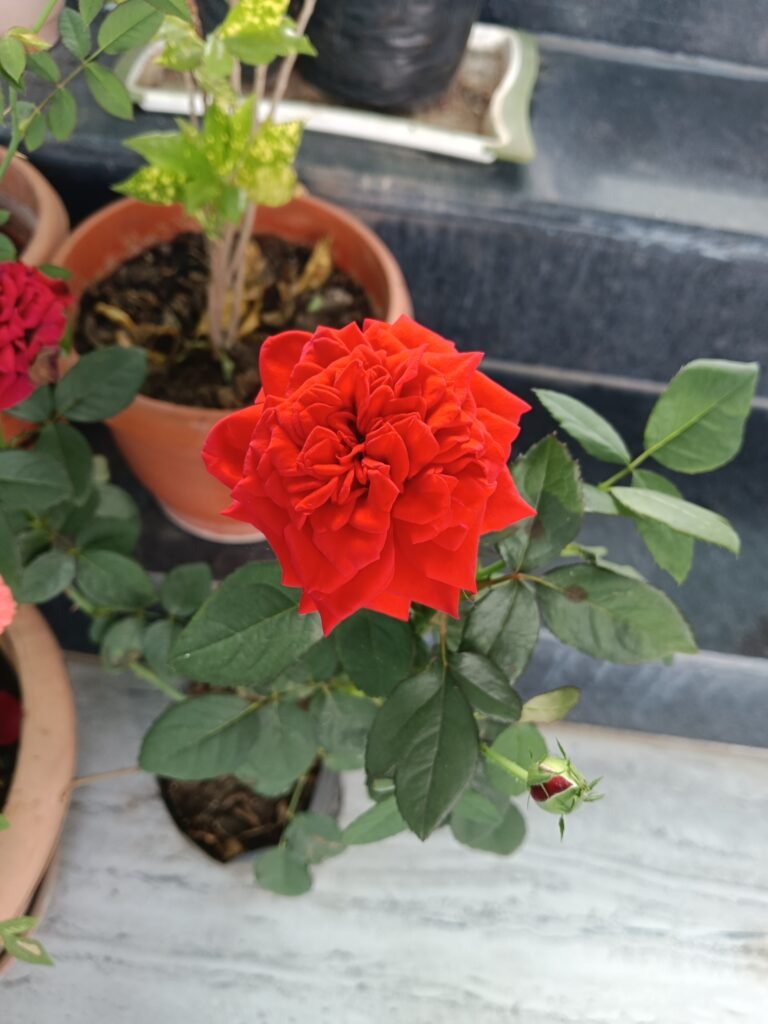
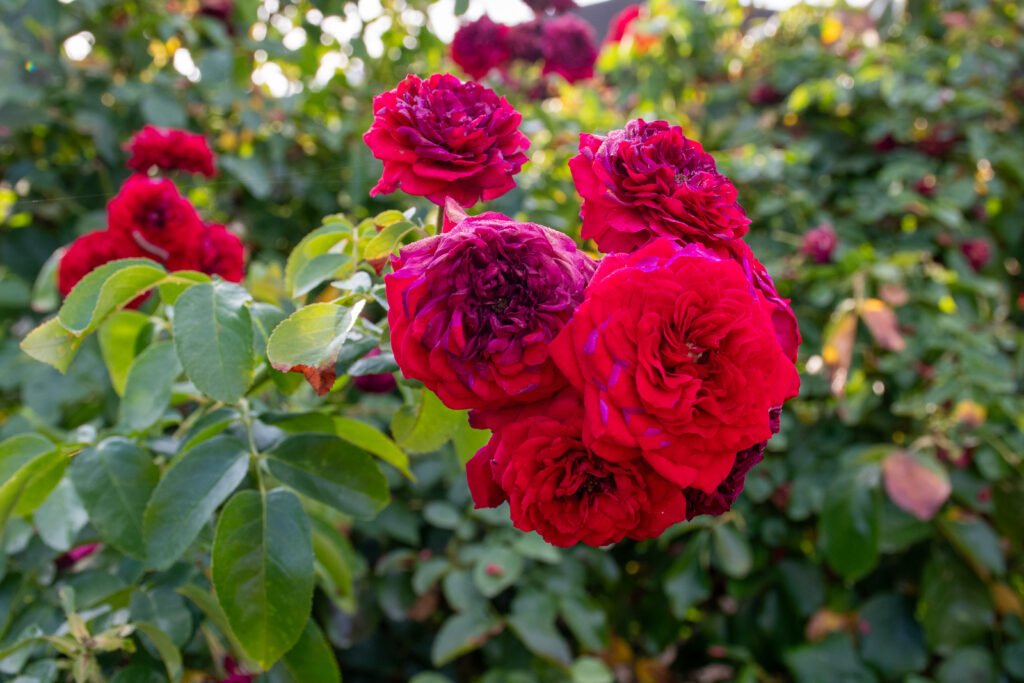
    Roses suit a screen with a romantic, classic mood. Their layered petals offer plenty of detail, whether you prefer a gentle pink flower or a stronger red bloom. For a phone, choose a portrait photograph that keeps the rose clear of the clock. For a desktop, a wider composition can balance the flower with foliage or background space. Check the preview with your usual icons in mind: a beautiful rose should remain visible once your screen becomes part of everyday use.

    Tulip wallpaper: simple shapes and spring freshness

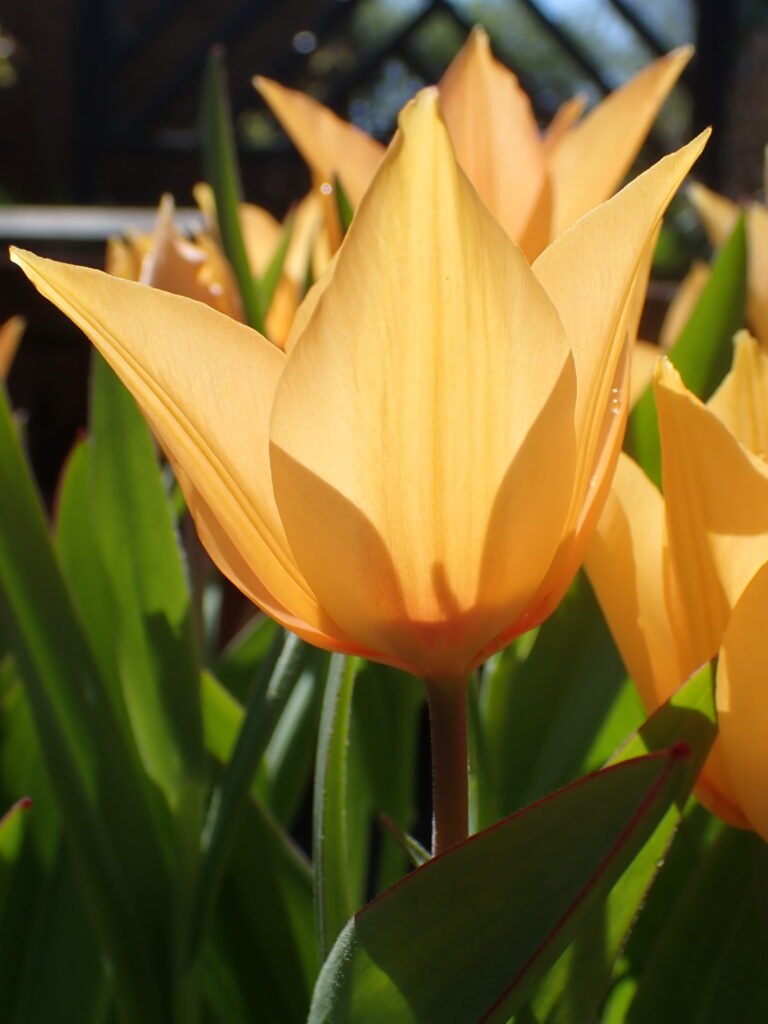
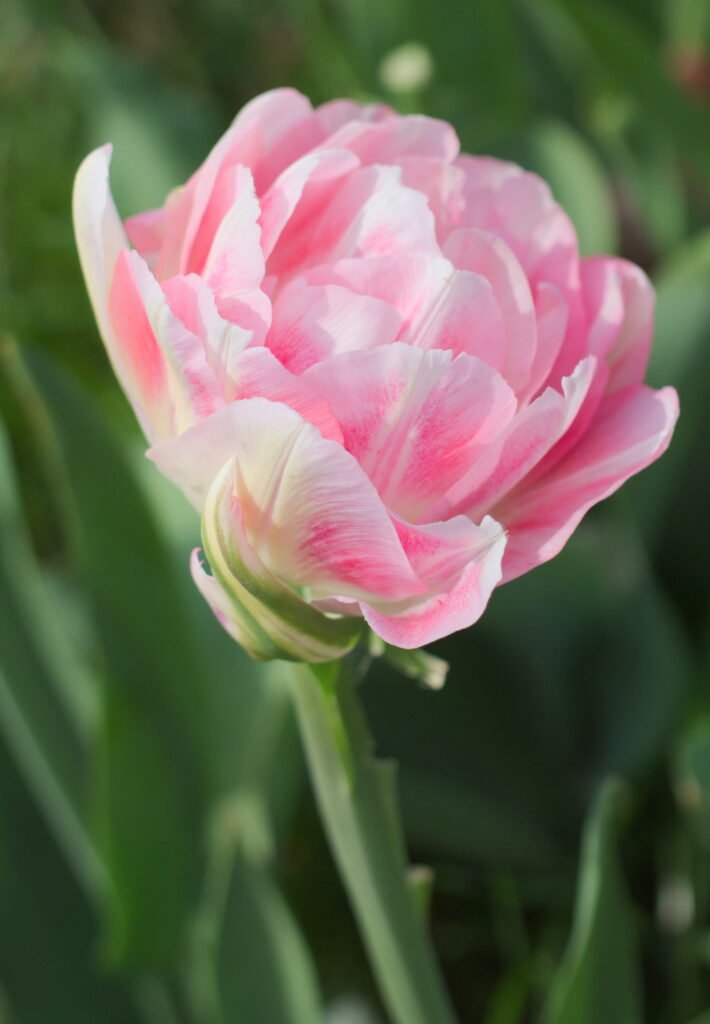
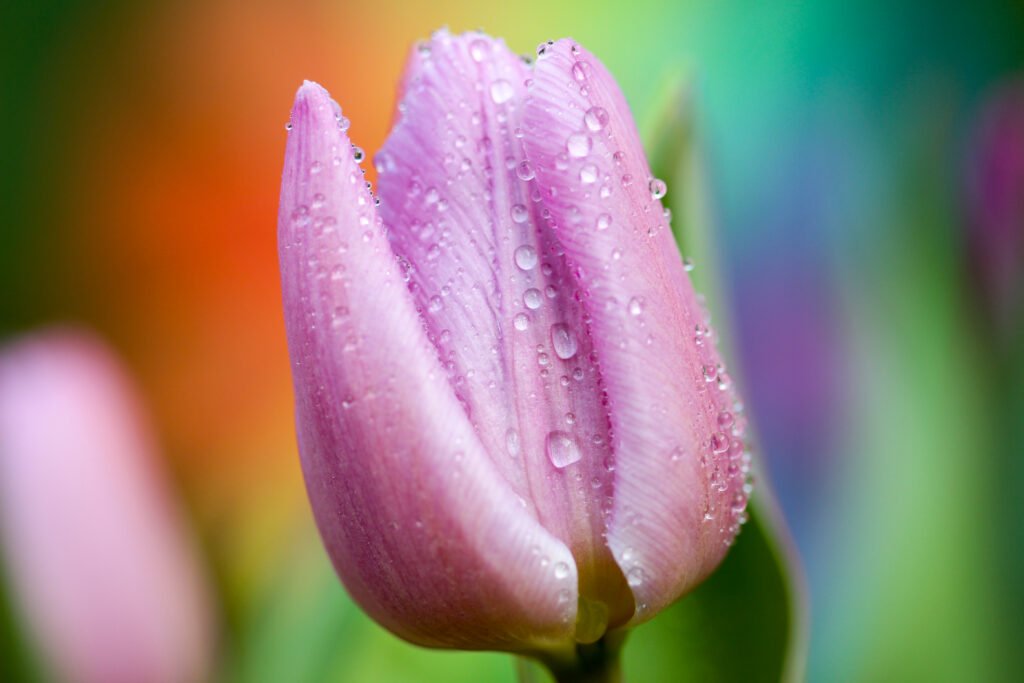
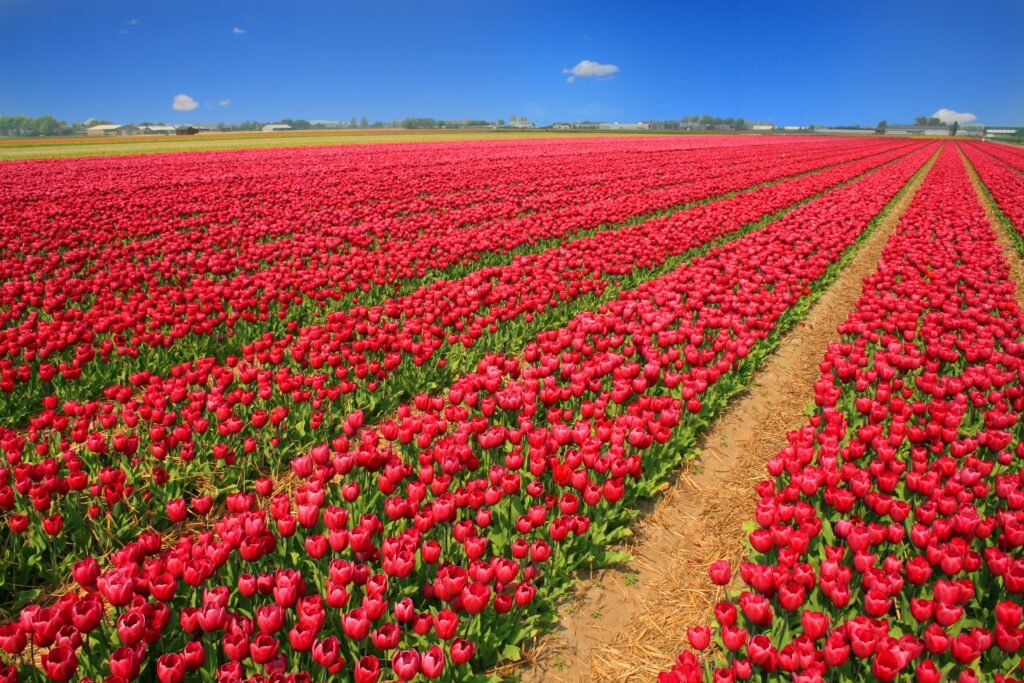
    Tulips have clean silhouettes that work especially well in floral backgrounds. A single upright stem can give a phone screen a clear focal point, while a group of flowers brings rhythm to a landscape photograph. Their cup-shaped petals and smooth leaves offer a different feel from densely layered roses. Try a tulip image when you want a bright, uncomplicated composition. Keep some space around the blossom as you crop, so its shape remains easy to recognise on a narrow screen.

    Sunflower wallpaper: warmth for your screen

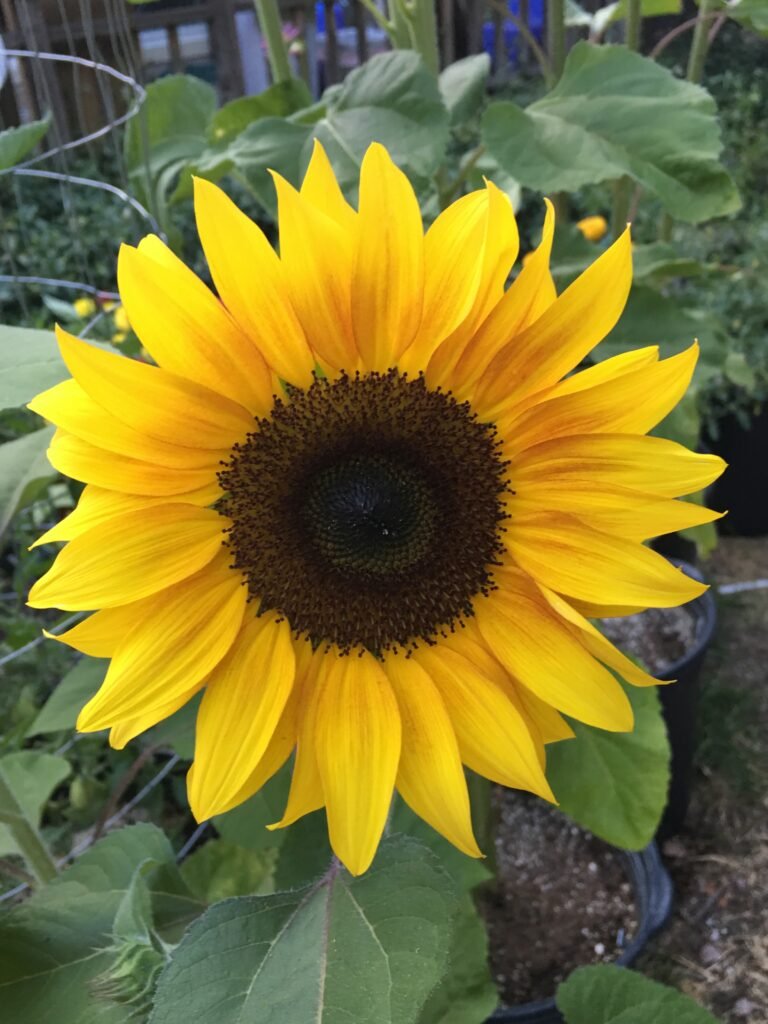
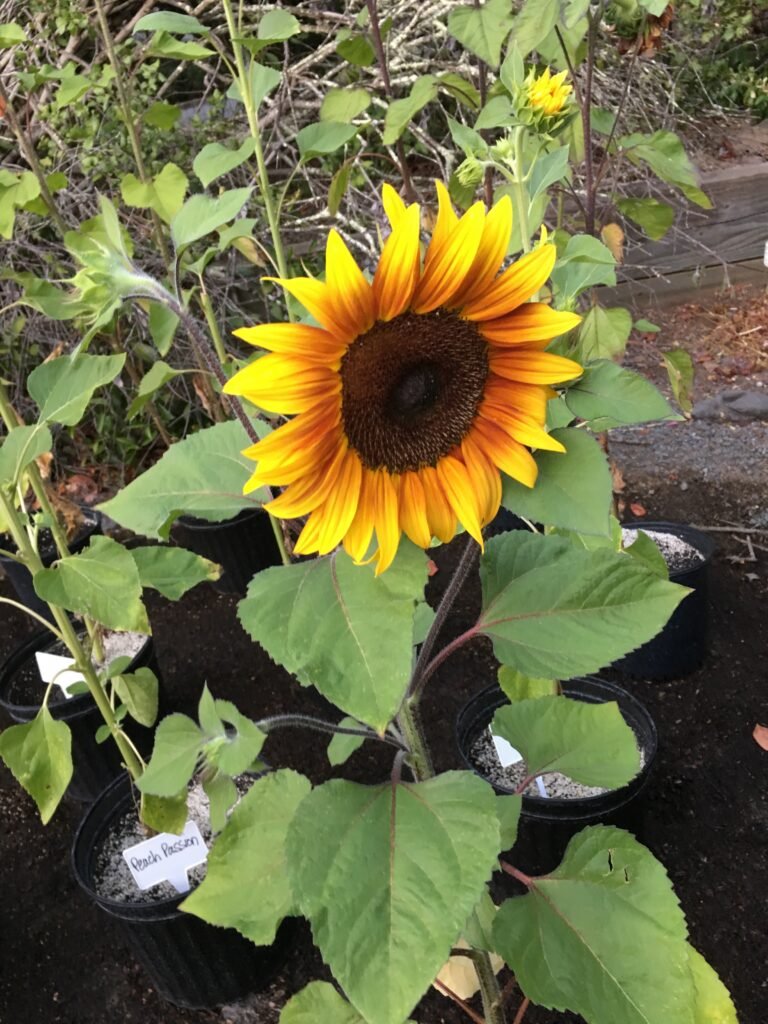
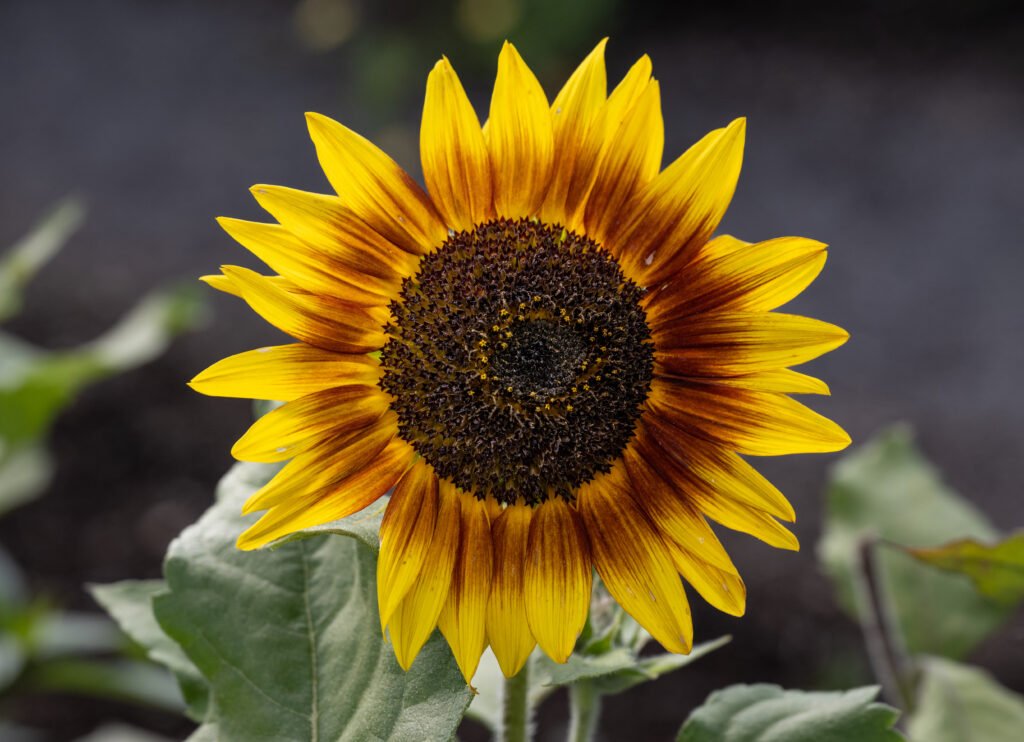
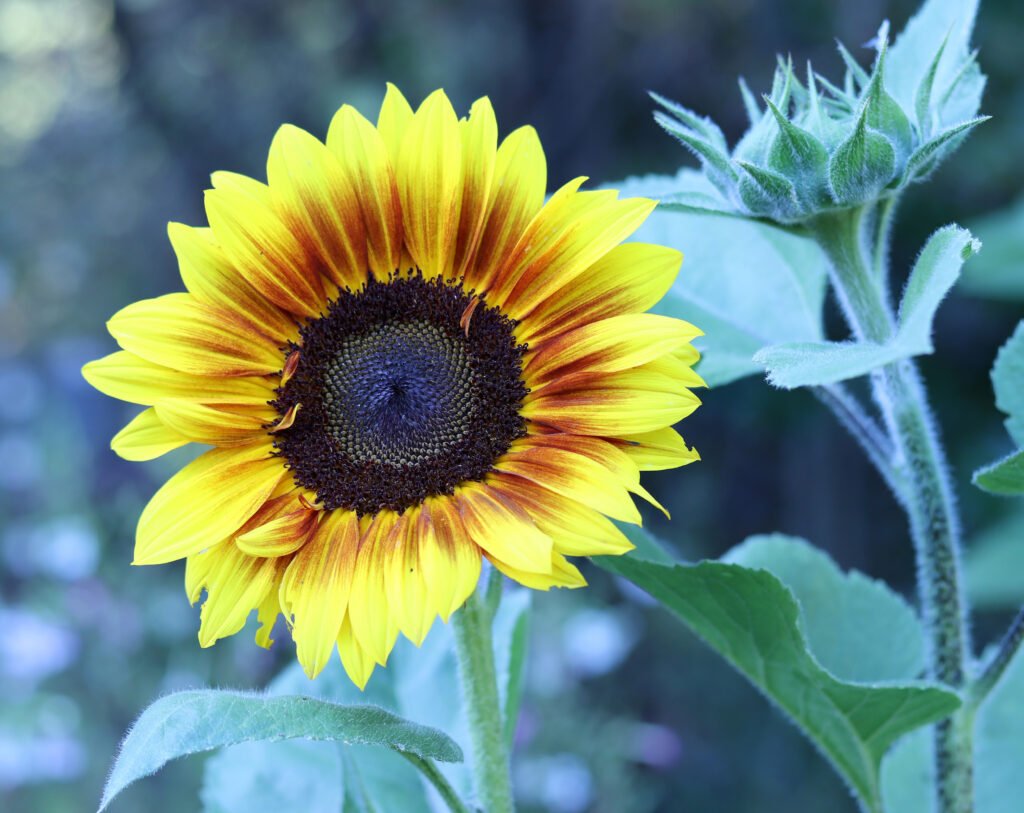
    Sunflowers combine bold yellow petals with darker centres, creating a strong natural contrast. They can make a desktop feel lively without needing extra colour effects. A closer portrait image gives your phone one main flower to enjoy; a wider view can spread the warm tones across a monitor. Bright petals sometimes sit behind white text, so preview your lock screen before applying the image. Moving the crop slightly may improve readability while preserving the cheerful character of the photograph.

    Daisy wallpaper: light and relaxed floral style

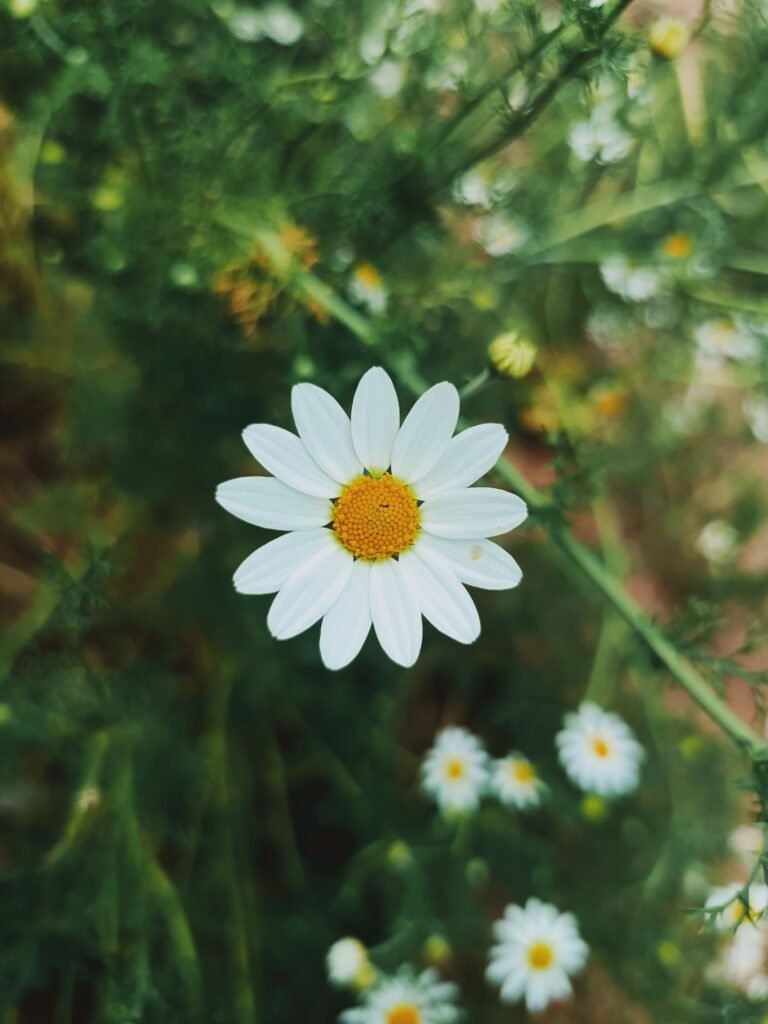
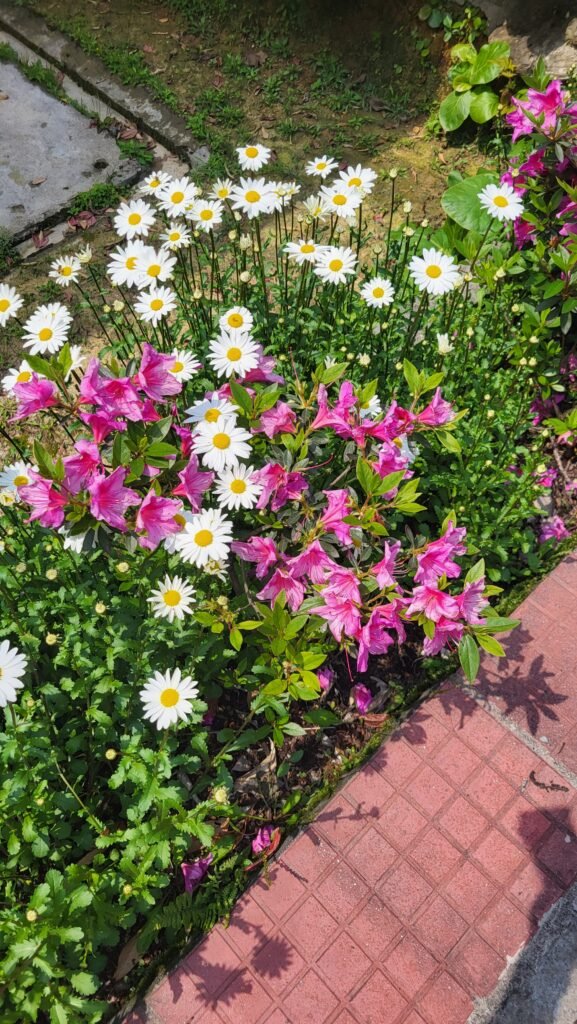
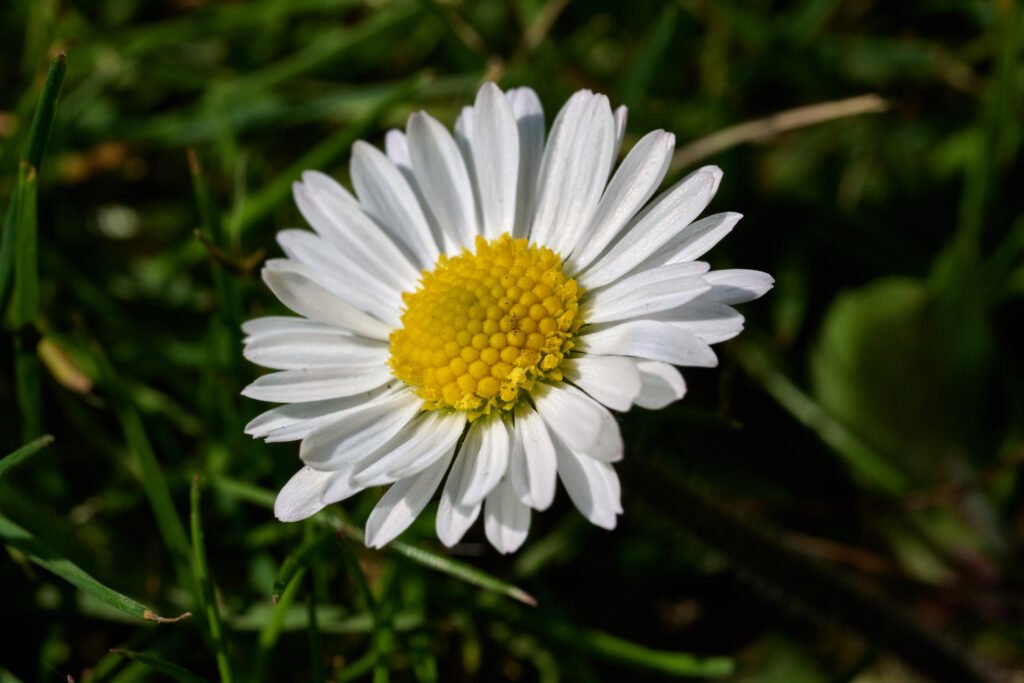
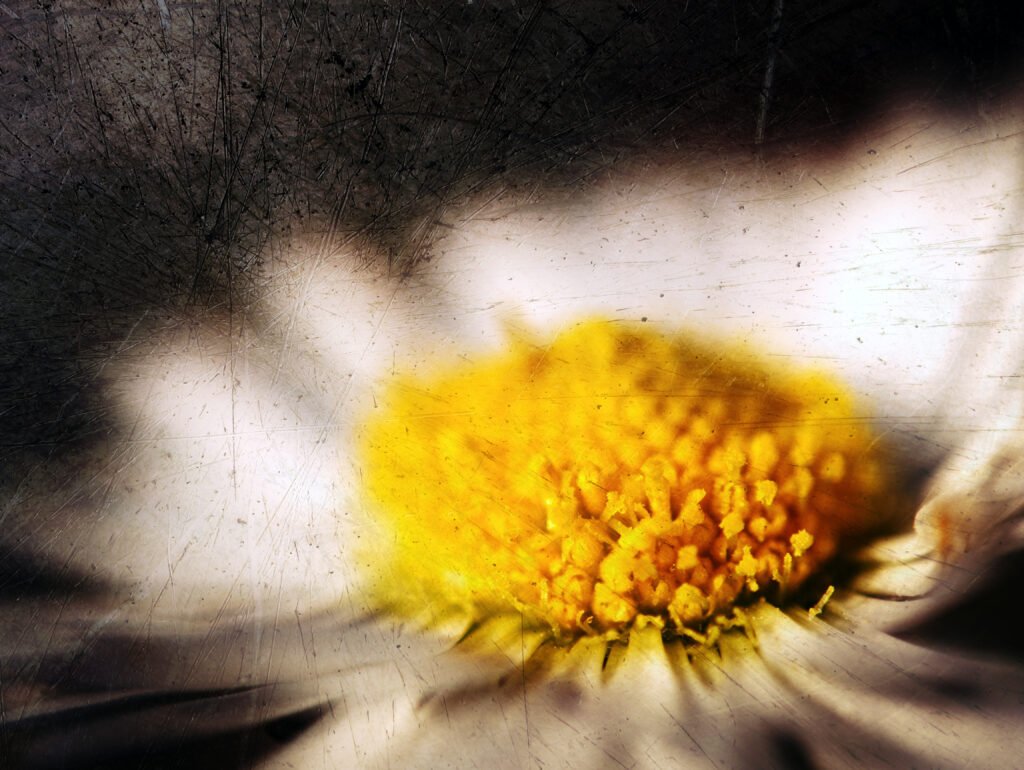
    Daisies offer a lighter, informal look with their open faces and simple petals. They suit a screen that feels fresh rather than elaborate. White petals against green plants create a gentle contrast, while a cluster of flowers adds texture across a desktop. On a phone, keep the central flower away from the most crowded rows of apps. If you prefer a quiet background, choose the image with more space between blooms and fewer small details behind your notifications.

    Lavender wallpaper: delicate stems and gentle tones

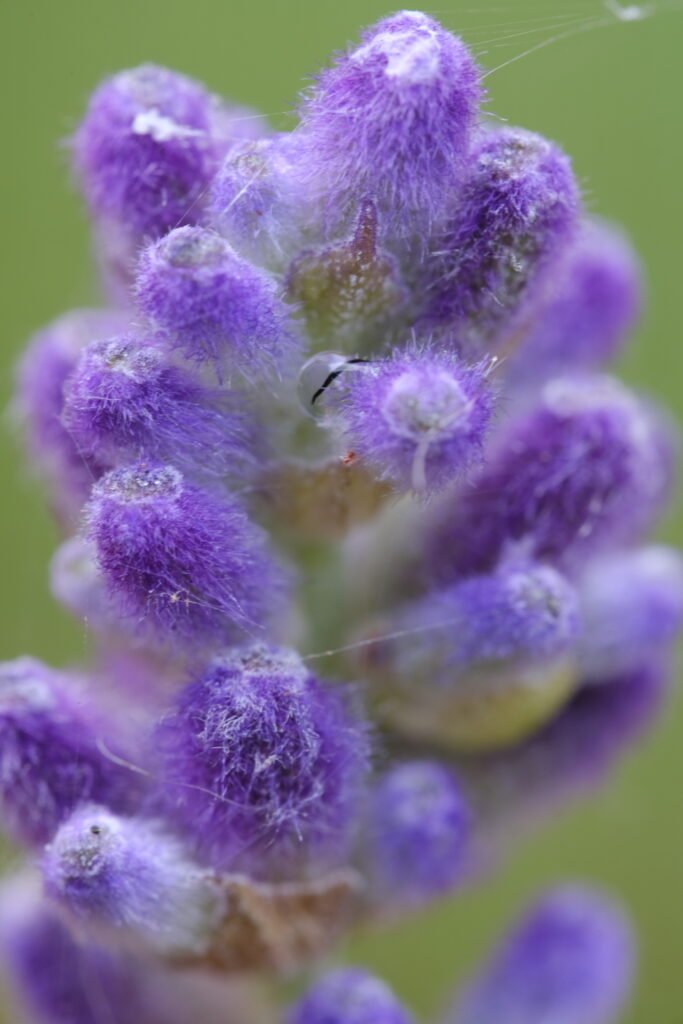
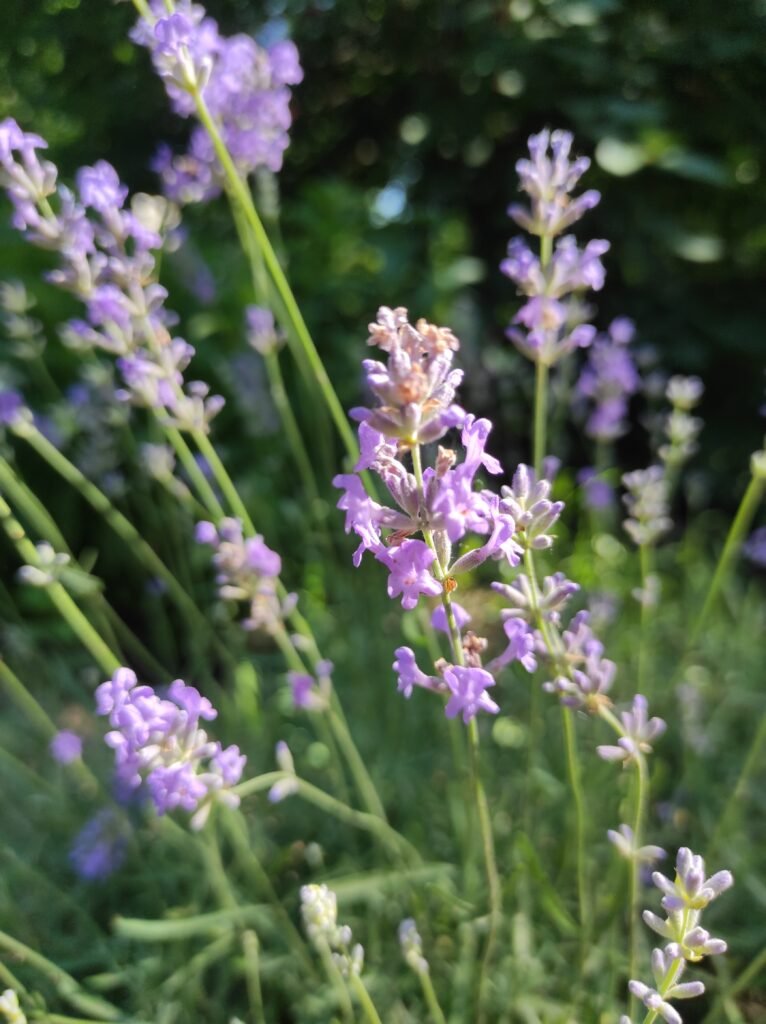
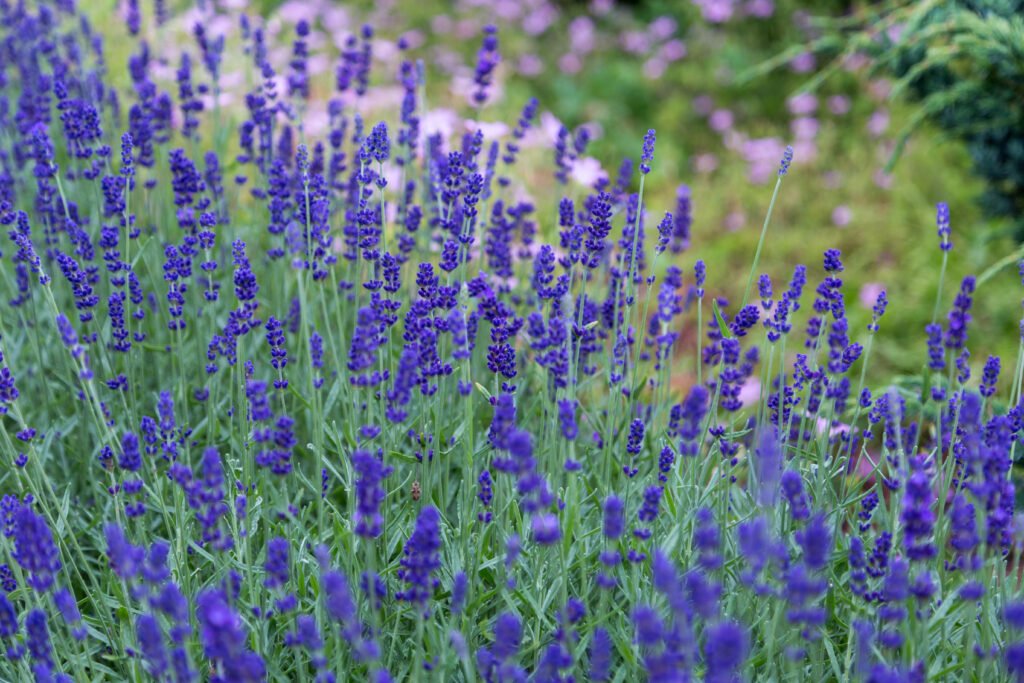
    Lavender brings slender flower spikes and soft purple shades to a botanical screen. Its upright growth can fit portrait compositions naturally, while broader views introduce repeating stems and garden texture. These images pair well with a restrained arrangement of icons. Look for a crop that preserves the length of the stems rather than cutting every flower head at the edge. If a detailed scene feels busy on your home screen, use it on the lock screen and keep your apps over a calmer background.

    Cherry blossom wallpaper: airy seasonal beauty

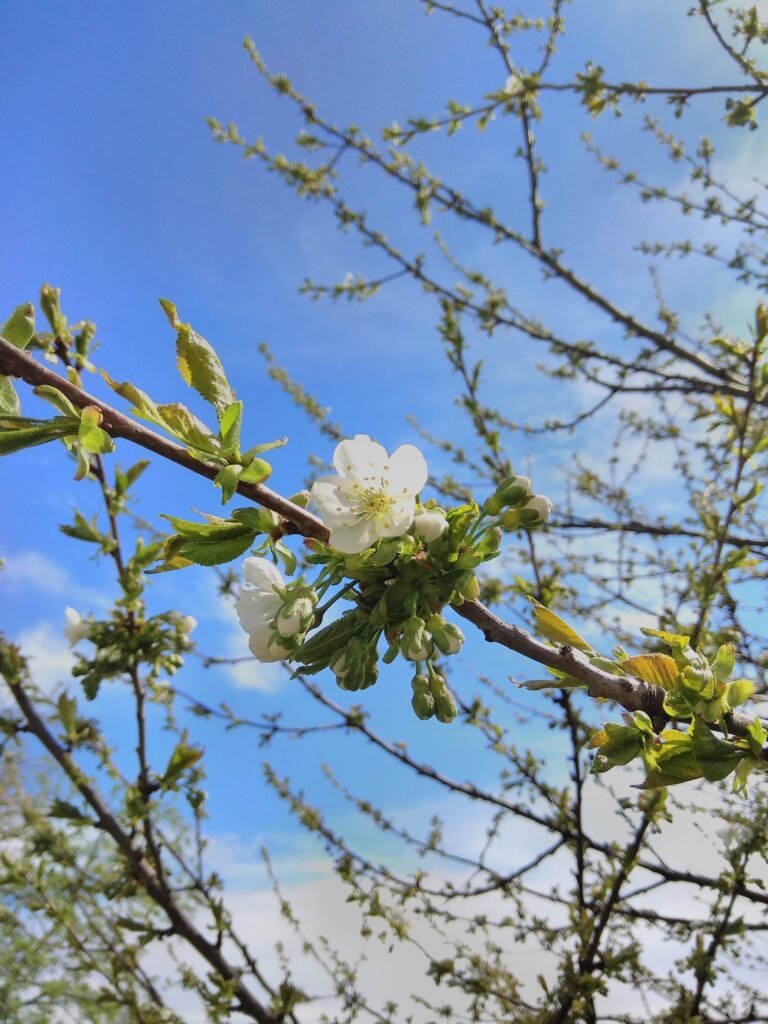
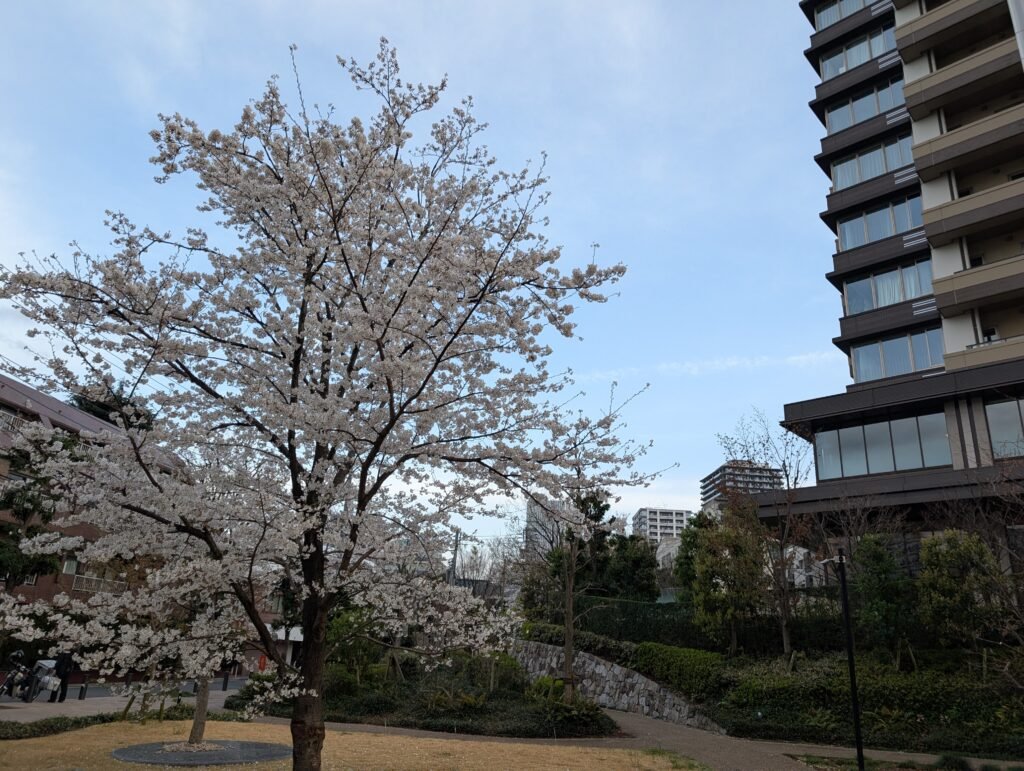
    Cherry blossoms introduce delicate petals and branching shapes that give a wallpaper a light spring mood. The gaps between flowers can be useful for clocks and widgets, especially in portrait photographs. A landscape image lets you enjoy more of the surrounding branches. When adjusting the crop, avoid placing the most detailed cluster directly underneath important text. Soft blossom colours can look different at various brightness settings, so check the wallpaper in the lighting conditions where you normally use your device.

    Lotus wallpaper: a clear botanical focal point

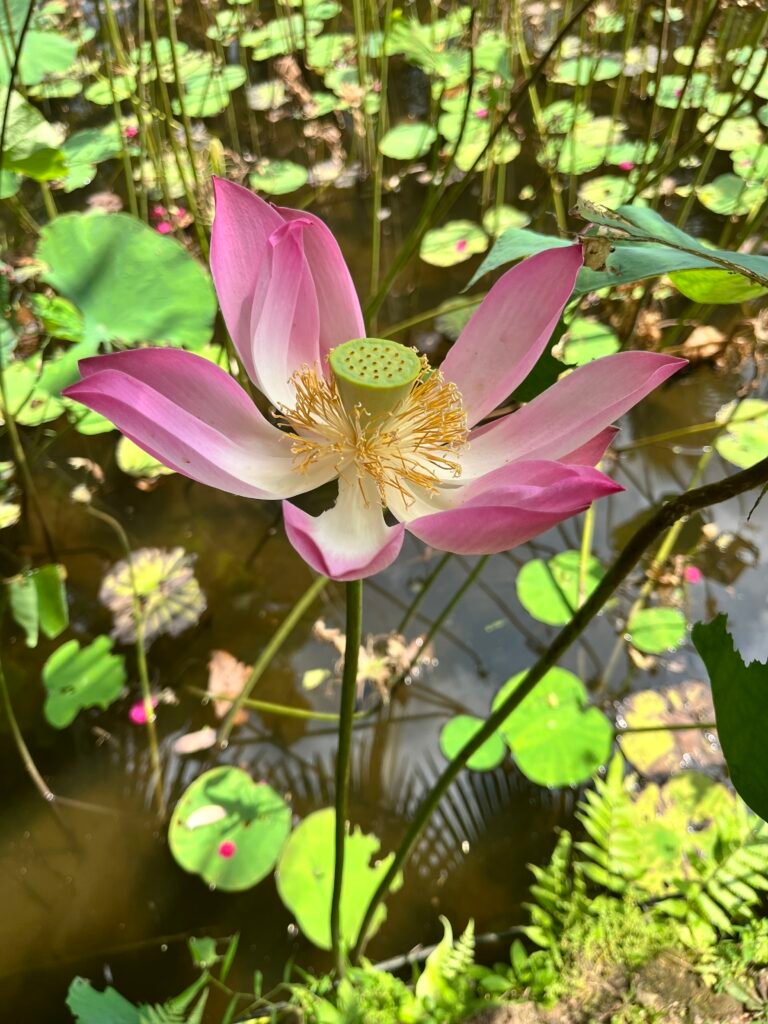
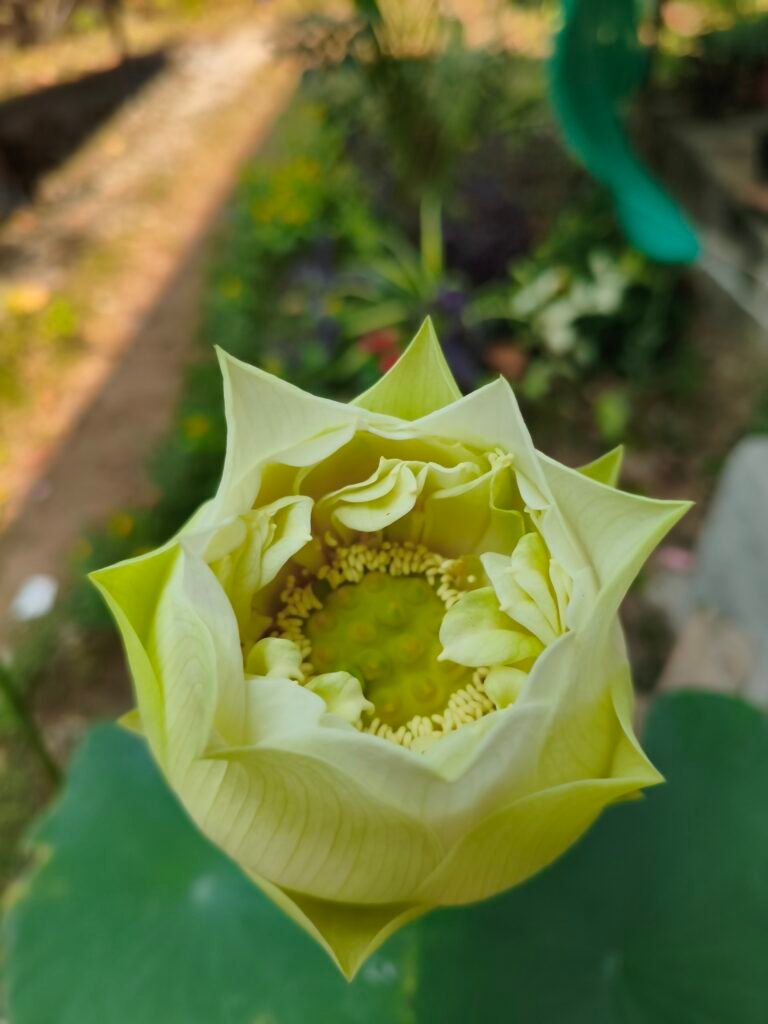
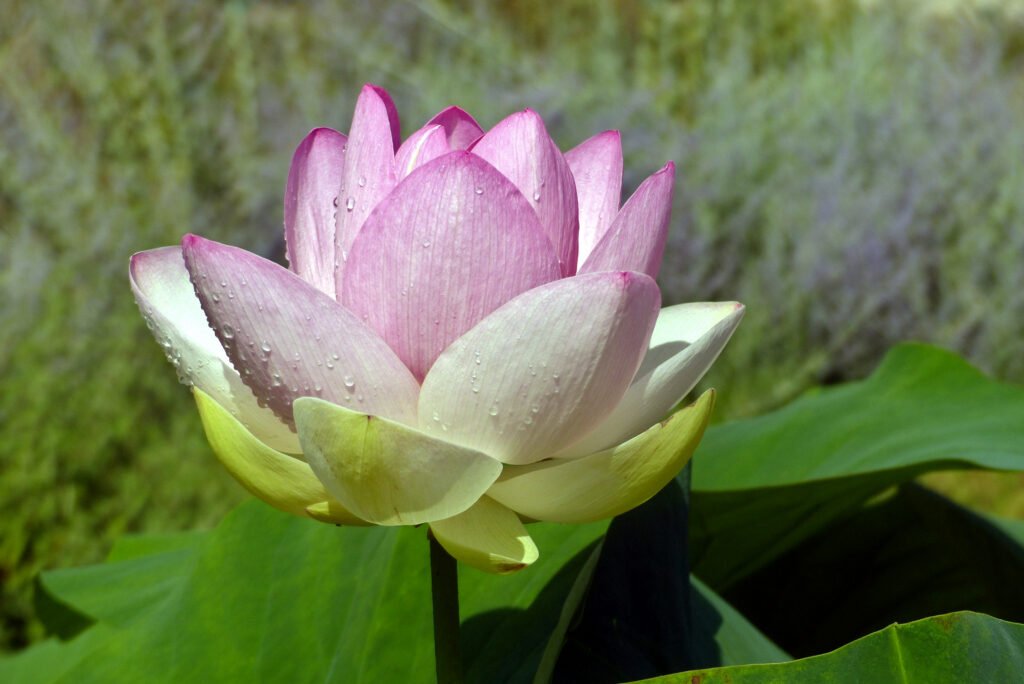
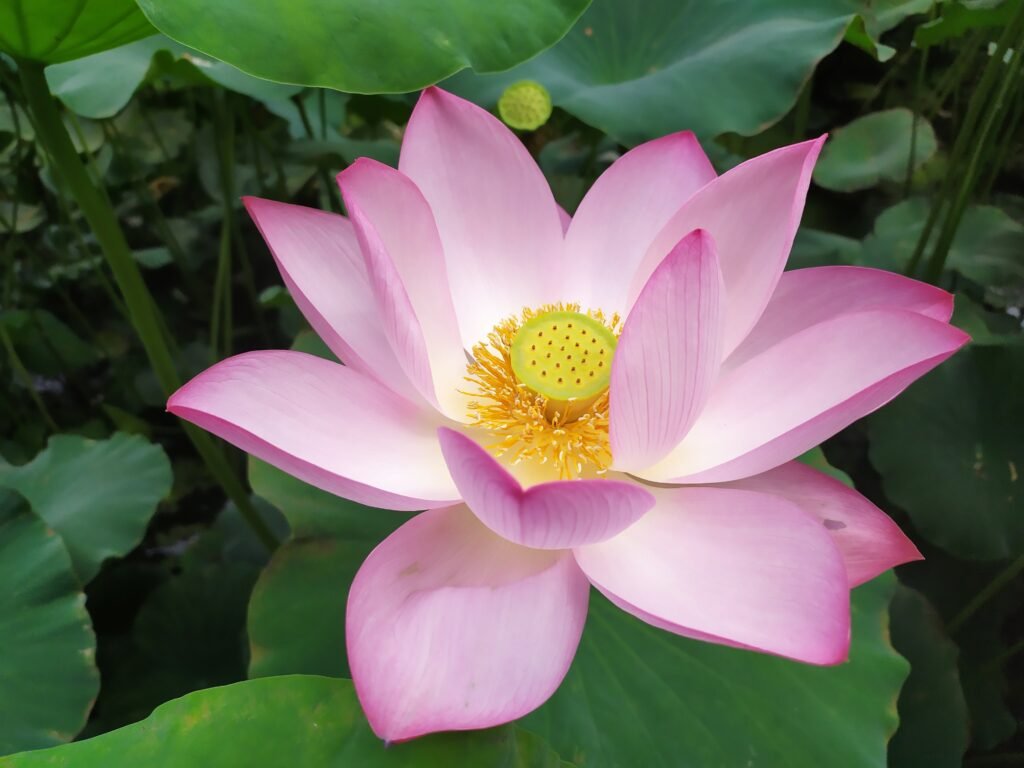
    Lotus flowers have distinctive petals and often appear with broad leaves or water nearby. Their strong shape can give a phone background an obvious centre of attention. A landscape composition leaves room for the setting, which may suit a desktop with icons arranged along one side. Choose a crop that keeps the full flower visible where possible. The quieter parts of the photograph can provide useful space for labels, helping the screen stay practical while keeping the botanical subject prominent.

    Orchid wallpaper: sculptural flowers and detail

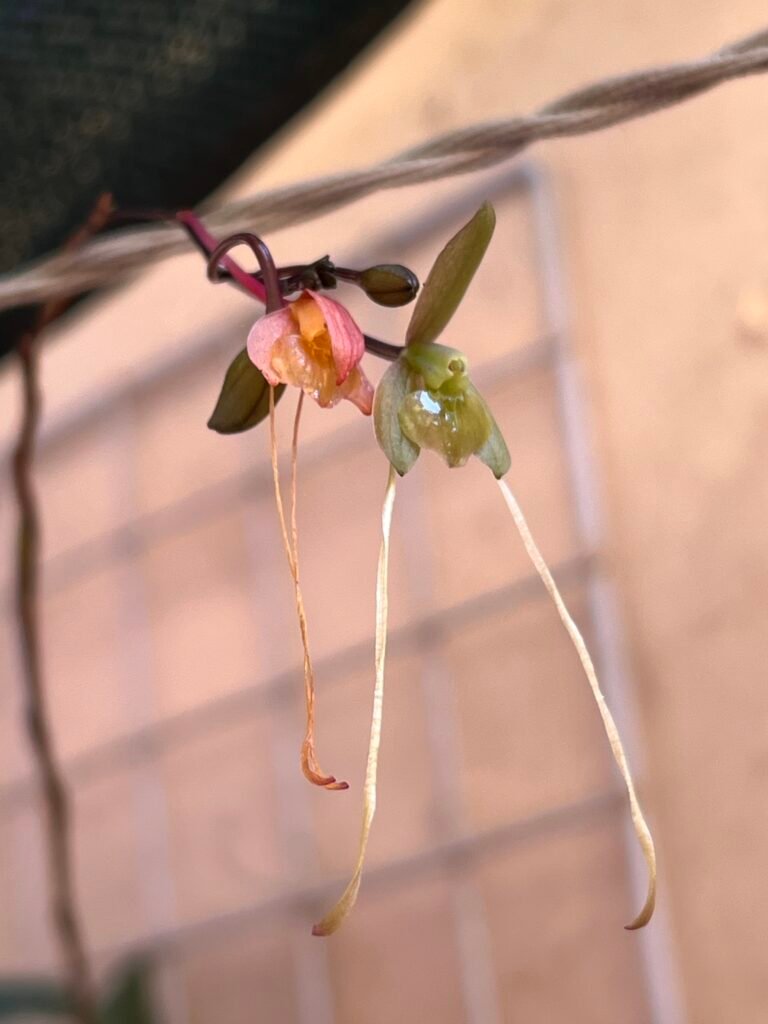
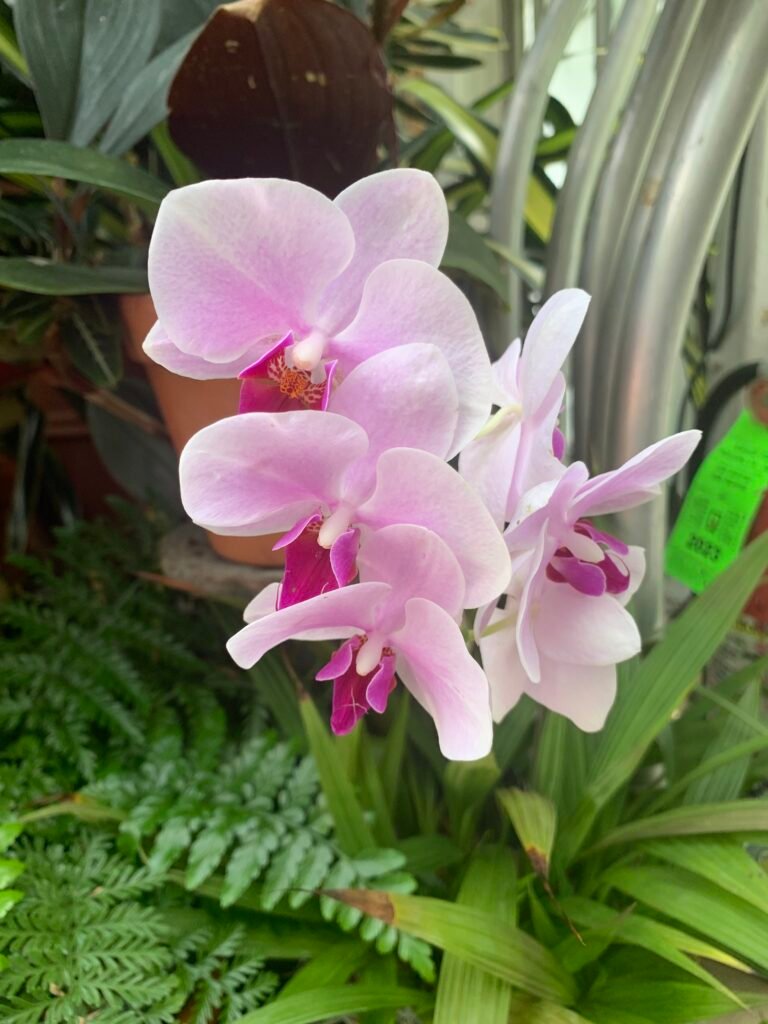
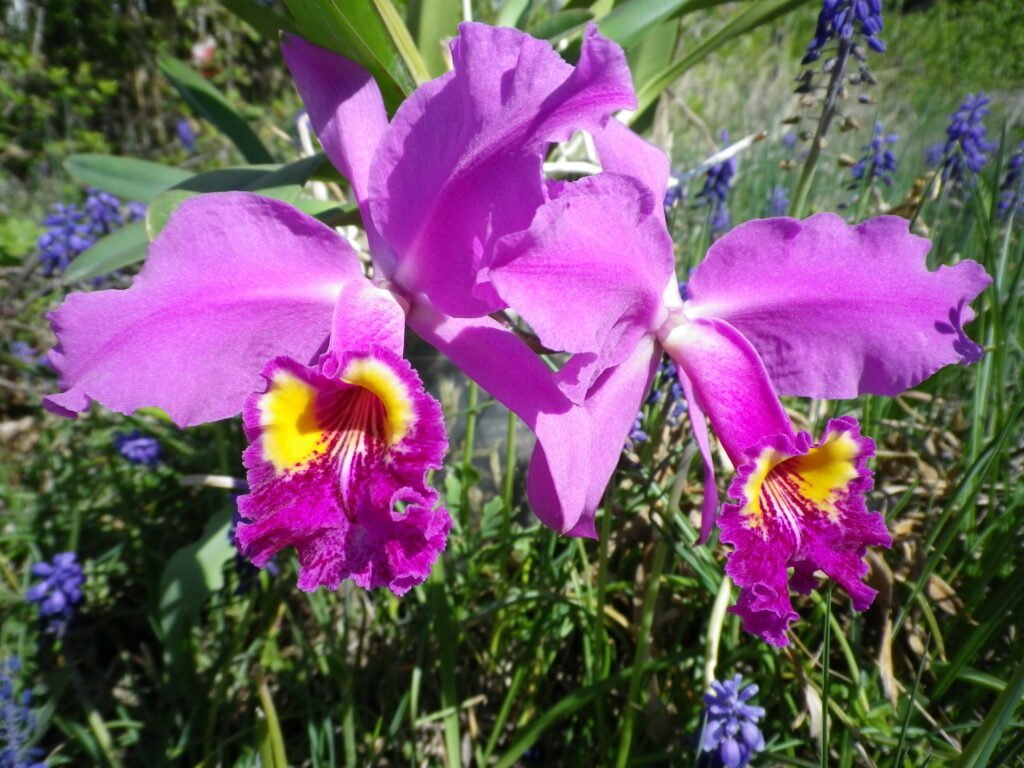
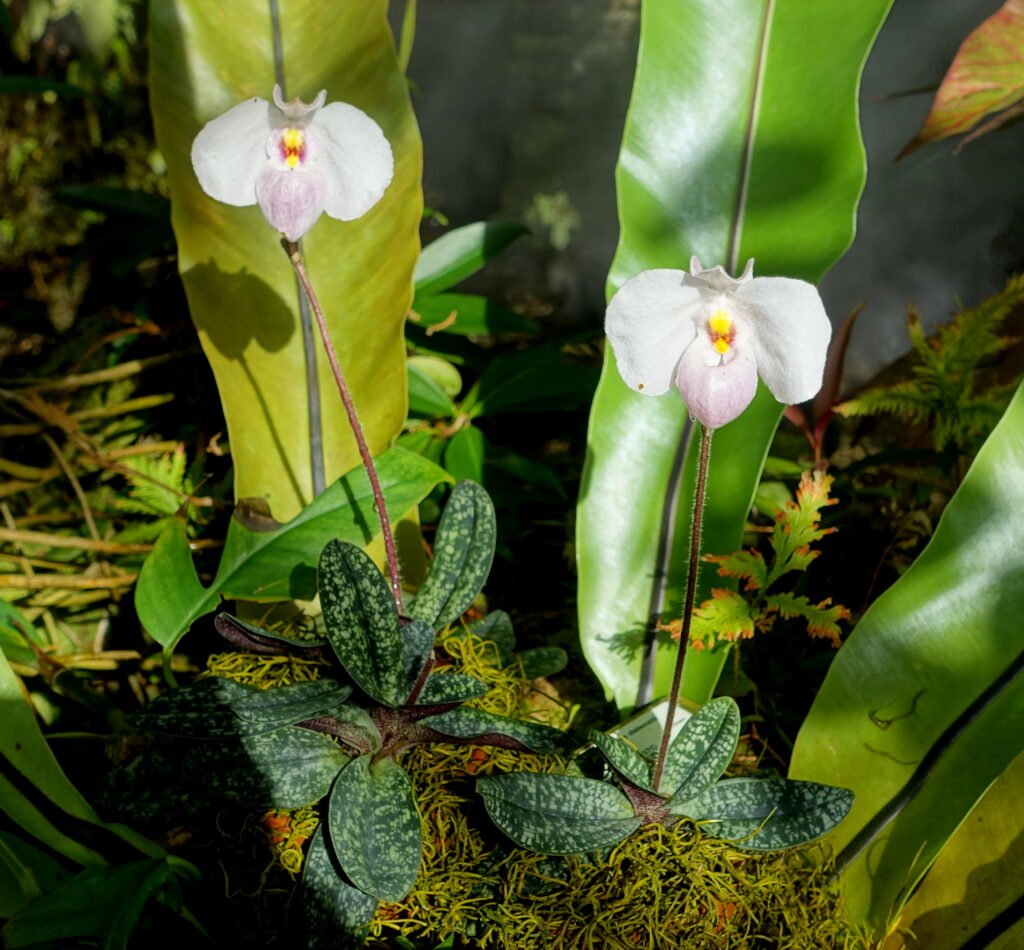
    Orchids offer unusual petal shapes and interesting patterns, making them a good choice when you want something different from familiar garden blooms. A portrait photograph can highlight a flowering stem, while a landscape view may show several blossoms together. Their fine details are best appreciated from the full-resolution download. Avoid enlarging a small preview to fill your display. Instead, begin with the original file and adjust its placement until the flower and your screen information both have enough room.
    Peony wallpaper: full blooms and soft texture

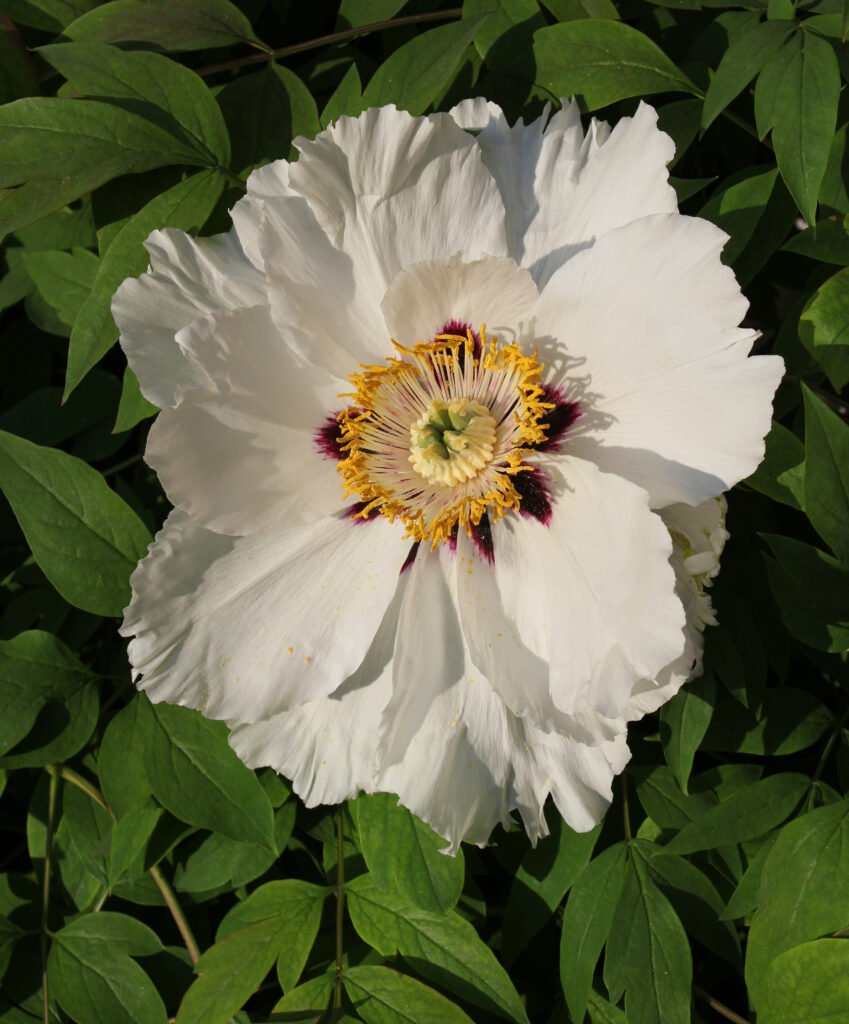
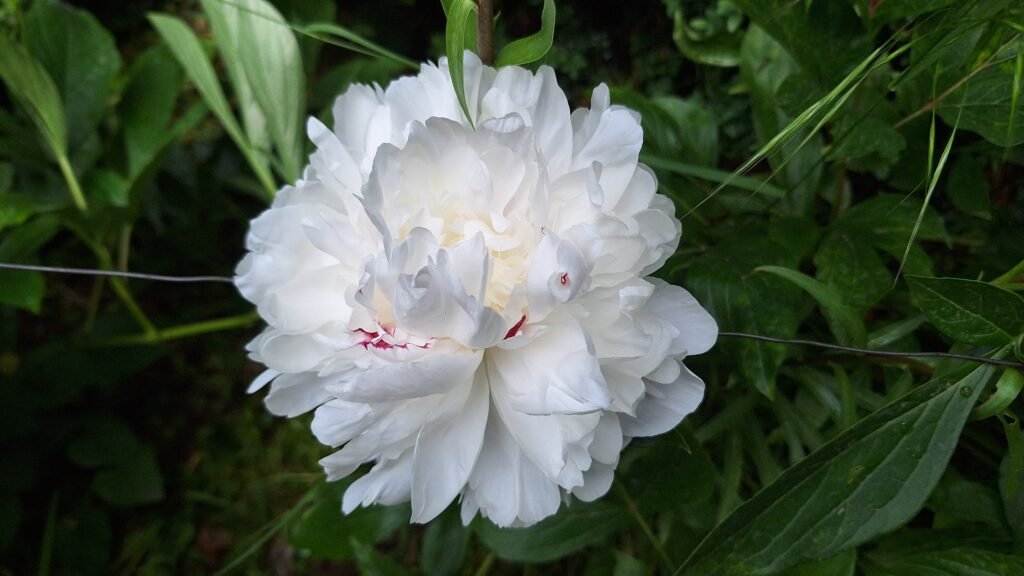
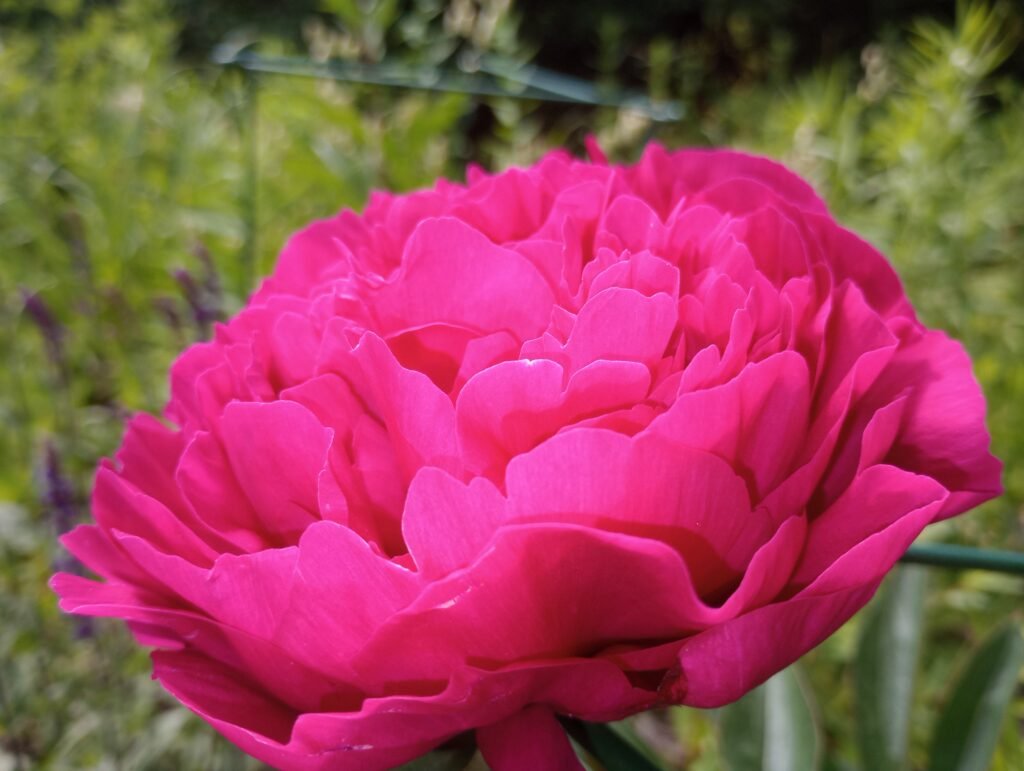
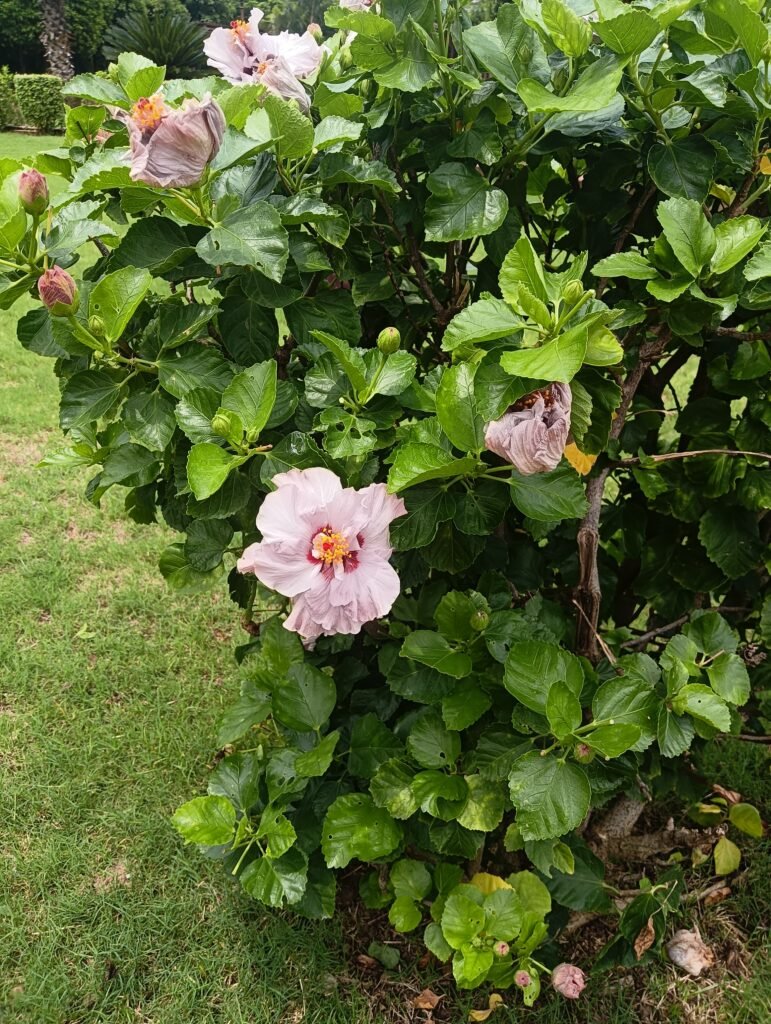
    Peonies bring generous petals and rounded flower heads to a wallpaper collection. Their dense texture can feel rich even when the colour palette stays gentle. A close portrait composition makes the bloom the main feature of a lock screen. Wider photographs give the surrounding leaves a larger role. Because a full peony can occupy much of the frame, try several crops before deciding. Leave the centre of the flower visible and move widgets into a simpler area when your device allows it.

    Hibiscus wallpaper: bold petals and garden colour

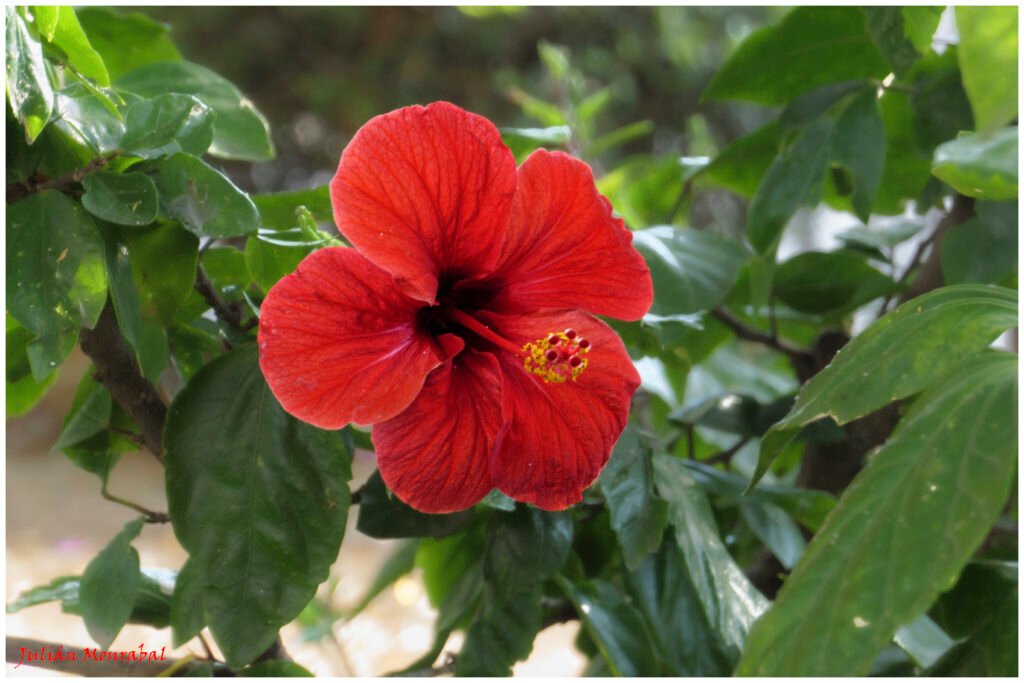
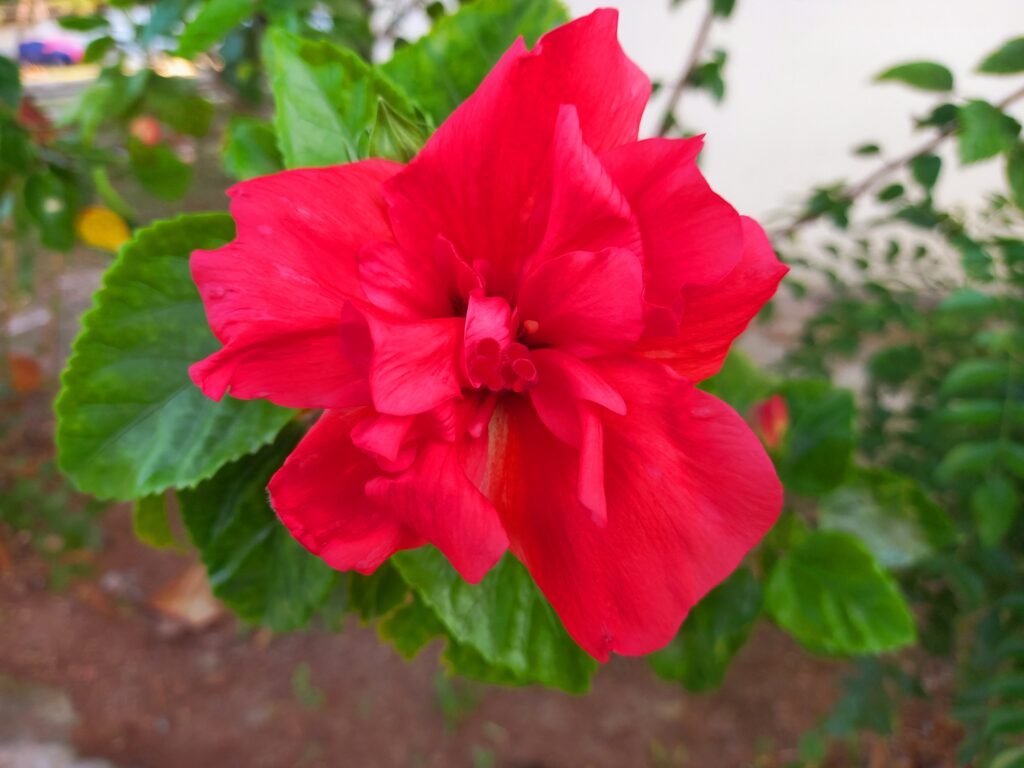
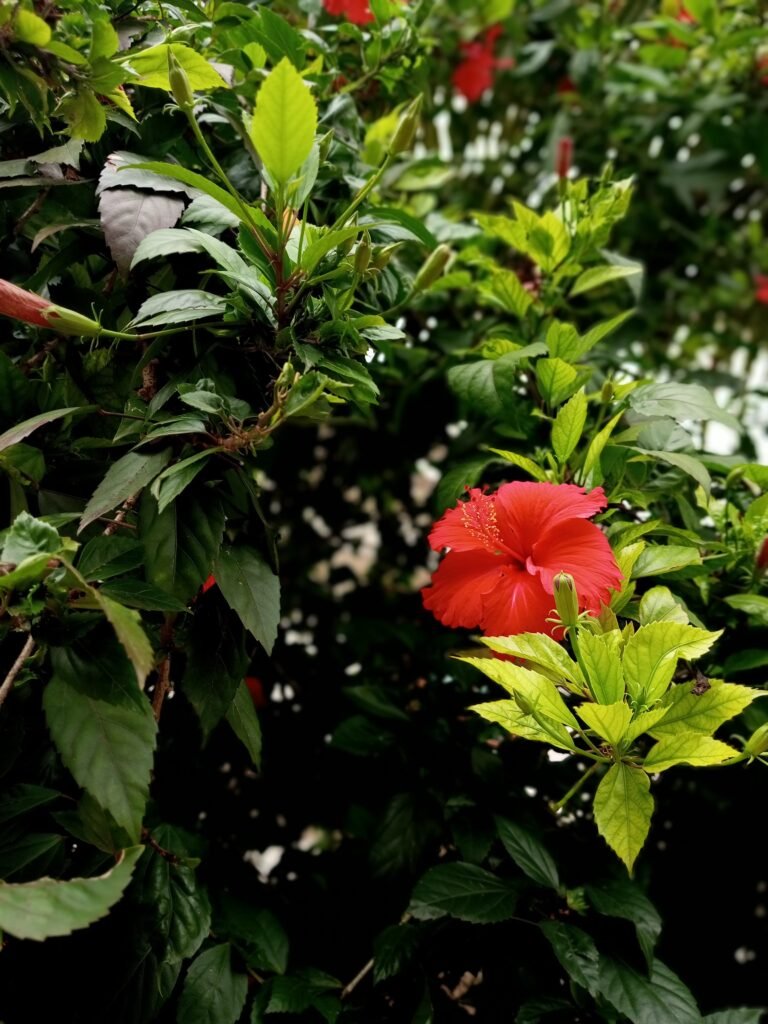
    Hibiscus flowers offer broad petals and a distinctive central column, creating a striking focal point. They work well when you want a brighter, more expressive floral screen. A portrait image can emphasise one flower, while a landscape image introduces more foliage and space around it. Check that the central detail does not disappear beneath the clock or shortcuts. A small shift in placement can preserve the flower’s shape and make the background much easier to enjoy throughout the day.

    Phone and desktop sizes explained

    Phone wallpapers in this collection use portrait photographs; desktop wallpapers use landscape photographs. Their original proportions vary, so they are not all identical screen-shaped files. Each caption lists the actual width and height in pixels. A typical 4K desktop has 3840 by 2160 pixels, while the equivalent portrait orientation reverses those dimensions. These high-resolution originals leave room for a suitable crop. Your device may still trim the edges to match its particular screen ratio, especially on a tall phone or an ultrawide monitor.

    Download the original wallpaper

    Use the download button under your chosen photograph to save its ZIP archive. Extract the archive to find the original image, then open that image in your device’s wallpaper or background settings. The ZIP keeps the full-size file available without the smaller image version used for browsing. Avoid saving a screenshot of the preview, because it only captures the displayed pixels. Keep the original download so you can try a different crop later without repeatedly compressing or enlarging the photograph.

    Build a small collection of favourites

    You do not need to settle on one floral background forever. Save a few favourites with different colours and levels of detail, then change them when your screen needs a fresh look. A pale blossom may suit a quiet working day, while a sunflower can feel brighter during a weekend. Keep the downloads in a clearly named folder so you can find the original files again. When comparing two images, use the same display brightness and similar crops. This makes it easier to judge the composition instead of choosing only the brightest preview.

    Choose natural detail over heavy effects

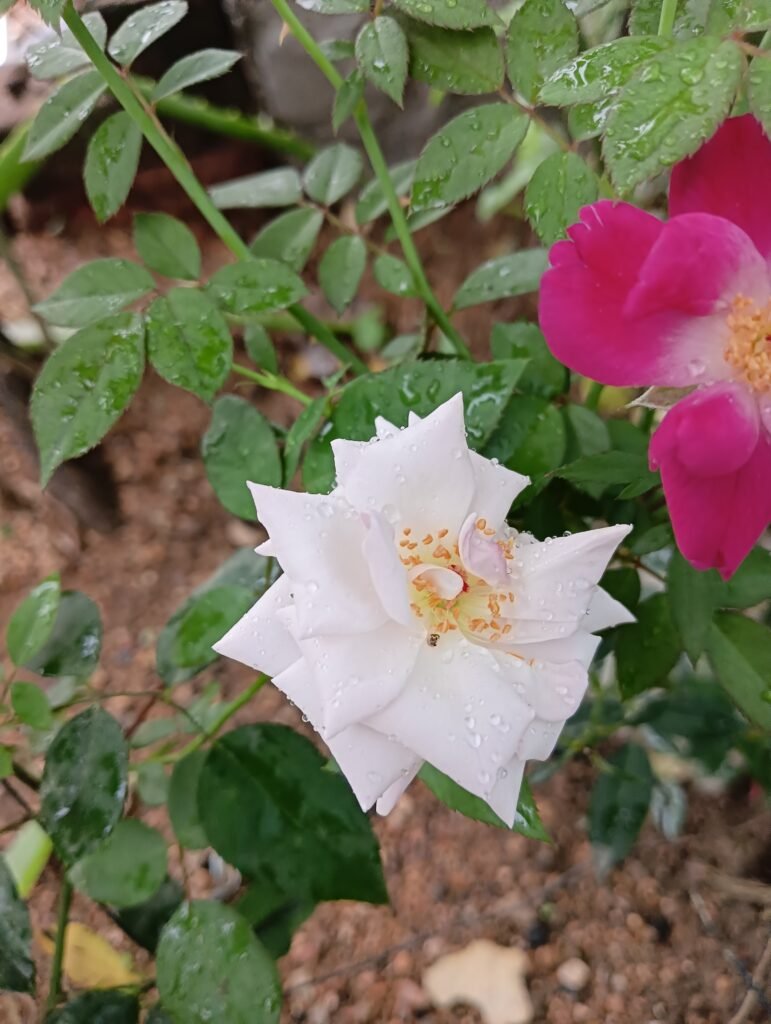
    Petal texture, small droplets, and the shape of leaves can give a flower photograph interest without extra filters. Look closely at your chosen image after setting the wallpaper. If the subject appears too enlarged, reduce the zoom or choose another composition from the same flower tab. A different photograph often gives a better result than forcing a tight crop. Let the natural colours guide your choice of widgets and icon placement.

    Make your floral wallpaper comfortable to use

    Preview the background with your clock, notifications, and usual icons before applying it. Keep important text over a calmer part of the photograph and use a proportional crop rather than stretching the image. You can choose different wallpapers for your lock screen and home screen, or use a quieter desktop image while working. The source and licence links beneath each photograph let you check its original information. Explore HayaGlam’s Wallpaper category as more collections are added, and save your favourite flowers for an easy screen refresh. Keep several options available for different moods, seasons, and devices.